
Decide how much screen time is right for your kids and protect them from inappropriate websites and apps. Child Control helps your kids stick to the rules you set, every day, on Windows and Android.








Want your kids to spend no more than an hour a day on screens? With Child Control, that hour covers the PC, the phone and the tablet together. Once it’s up, it’s up on every device.
With Child Control, learning apps stay available once screen time runs out, and if you like, they can even earn your kids a few bonus minutes of play.
For example, give your kids 1 hour on school days and a little more on weekends. If one game or app is taking over, simply give it a limit of its own.
Child Control’s web filter blocks websites that aren’t right for your kids’ age. You can also block a specific app or website yourself.
Detailed reports show which apps and websites your kids opened, and how long they spent on each. You can get them by email, too.
Your kids can send you requests for more time, and you approve or decline them from your phone, even when you’re not at home.
Our “How it works” page walks you through every setting, on PC and phone.
On Windows, Child Control limits each child’s screen time, filters websites in every browser and can limit or block a specific game or program. Try it free
On Android, you get most of the Windows features, plus a few extras. Limit screen time for the whole phone or app by app, block inappropriate apps, filter the web in Chrome and see where your kids are. You can manage it all from your own phone, even if it’s an iPhone. Download Child Control
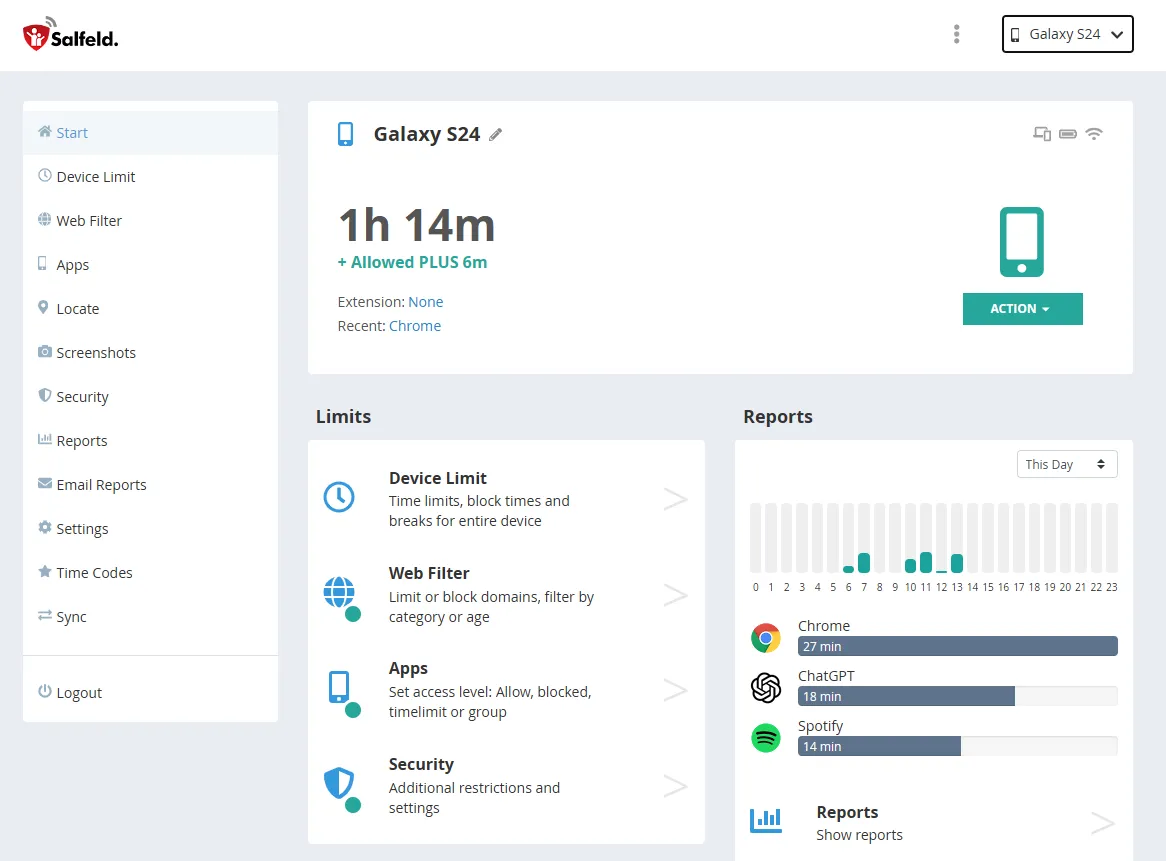
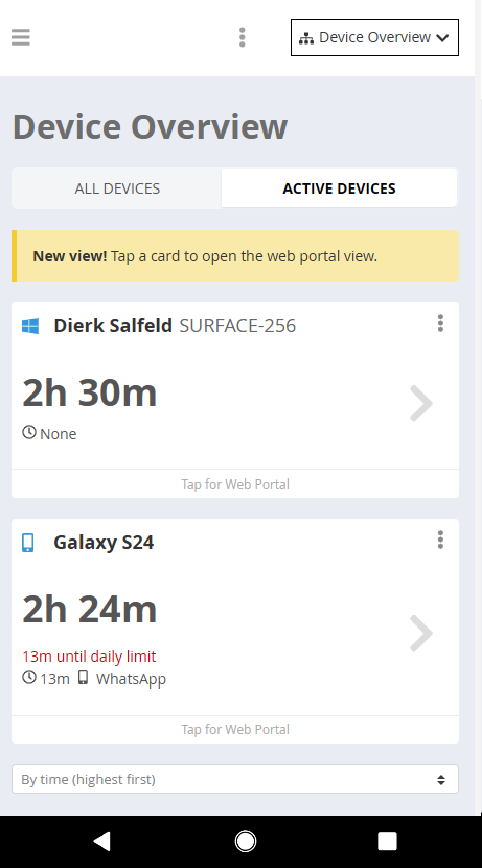
Sooner or later, many kids test the limits. Child Control closes the most common loopholes, and you choose how tightly each device is locked down.
Even a tech-savvy kid can’t simply shut Child Control down. You can also stop your kids from changing the PC’s clock to get extra time. And if your kids create a new account to get around the rules, Child Control signs it out right away.
If your kids close Child Control, it restarts on its own. If they keep trying to get around it, for example by switching rapidly between screens, the phone locks for as long as you choose. On Samsung phones, Child Control can even stop them from factory-resetting the phone or changing the time.
Free for 30 days. No credit card. No subscription.

We loved that we could try it out for free and without obligation! We were finally sold by the large range of features within the first three days.
No, not on your child’s iPhone or iPad: Child Control protects Windows PCs and Android phones and tablets. You can, however, manage all the rules from your own iPhone with the Child Control parent app, which you add to your home screen from Safari.
Yes. You can set a separate limit for each day of the week, so Friday or Saturday can have more time than the rest of the week. With a weekly limit, your child can even plan their own time.
Yes. On Android, you set a daily time for each app, such as YouTube, TikTok, Snapchat or Instagram, or block it completely. That time counts toward the day’s screen time limit.
With shared screen time turned on, Child Control adds up the time spent on all your kids’ devices. An hour is an hour, whether it’s spent on the PC or on the phone.
Yes. Any app you set to “Allowed PLUS” stays available after the overall limit is reached, learning apps for example.
No parental control is impossible to get around, but Child Control closes the most common loopholes. On the PC, protection is even stronger when your kids use a Windows account without admin rights.
Yes. A license covers a number of devices, such as 1, 3 or 5, not a number of kids. If your kids share one PC, one license covers that PC, and you can set different rules for each child’s Windows account.
No. You buy a 12- or 24-month license that doesn’t renew automatically. The 30-day trial is free and doesn’t need a credit card.

Find more answers about kids and screens in our Guide