

Most parents already draw a line somewhere: 86% of parents with kids 12 and under have some rule about when, where, or how their child uses a screen (Pew Research Center, 2025). Turning that rule into something a device actually enforces tends to be the harder part.
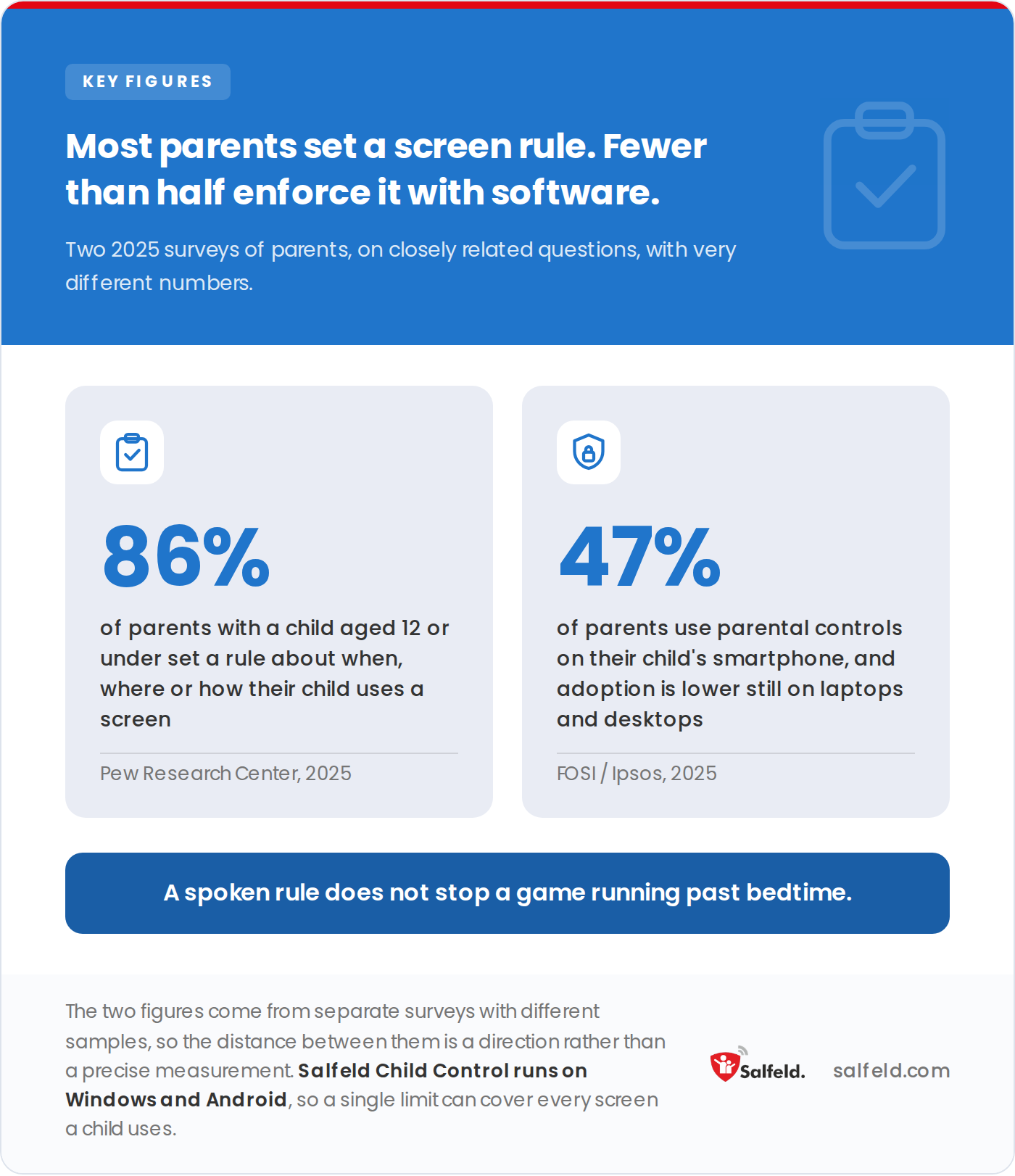
Both surveys polled parents in the United States, so the figures describe US households rather than a global average.
Children today learn, play, and connect with friends through the same phones, tablets, and computers they use for homework. A spoken rule doesn’t stop a game from running past bedtime, which is exactly the gap Salfeld Child Control is built to close, whether the device in question runs Android, Windows, or both.
This guide compares the Windows and Android versions side by side, then helps you pick the right fit for your household.
TL;DR
The Windows and Android versions of Salfeld Child Control share the same core: daily, weekly and monthly time limits, category and age web filters, blacklists and whitelists, unlock requests and email reports. The GPS location request is Android-only. Screenshots exist on both, but on Android they need the child’s consent and reappear as a notification. That parity matters because only 47% of parents currently use parental controls on their child’s smartphone at all (FOSI/Ipsos, 2025). Salfeld Child Control supports both operating systems, so you can manage time across every device from one account.
Screen-time rules are common; enforcement is not. Just 47% of parents use parental controls on their child’s smartphone, and adoption is even lower on laptops and desktops (FOSI/Ipsos, 2025). Salfeld Child Control’s core features apply whether your child uses a PC, a tablet, or a phone. Here’s what parents rely on most.
Child Control limits how long a child can use a computer, tablet, or smartphone each day, and that limit can also run weekly or monthly instead. The device shuts down automatically once the limit is reached, after issuing several preset warnings first, and a block screen appears on smartphones.
Kids generally accept the limit once they’re used to it. Parents can also set Child Control to open specific apps or programs once a set amount of time has passed, and reward time for learning programs is a nice bonus on top.
Nearly a third of kids run into something troubling online: 33% of 8-17-year-olds in the UK encountered content they found worrying or nasty within the past year (Ofcom, 2025). Cyberbullying, phishing, malware, and inappropriate content are the usual culprits, and most parents worry their child will land on a harmful site by accident rather than on purpose.
Child Control lets parents preset filters that block sites by age or category, or restrict browsing to an approved list, so everything else becomes off-limits. Even sites parents approve can still carry their own time limit.
Parents can review a child’s site activity and adjust settings from the online dashboard through the web portal, which opens on a phone, tablet, computer, or the parent app, including iPhones, iPads, and Macs. That means a parent on any device can check in.
The usage logs area shows exactly which sites a child has visited, and parents can unblock pages directly from there. Email reports go out daily or weekly, whichever a parent prefers.
Cross-device time calculation, commonly called roaming, adds up usage across several devices and synchronises the limit between them. That closes the most common workaround: a child hitting a time-out on the tablet, then simply picking up a laptop instead.
Every device in a roaming account receives the same limit, and changing a setting on one changes it on all of them at once. A device removed from the account keeps its last settings and can then be adjusted on its own. Up to five roaming accounts are available, so up to five children, with no limit on the number of devices each.
Most households run both: an Android phone or tablet in a pocket, a Windows PC on a desk. That mix is why cross-platform coverage matters more than picking a single winner. Salfeld Child Control handles daily, weekly, and monthly time limits, category web filters, and email reports on both. Windows alone adds a screenshot feature; Android alone adds a GPS location request. The infographic below covers the six capabilities parents ask about most, and the full table after it lists every one.
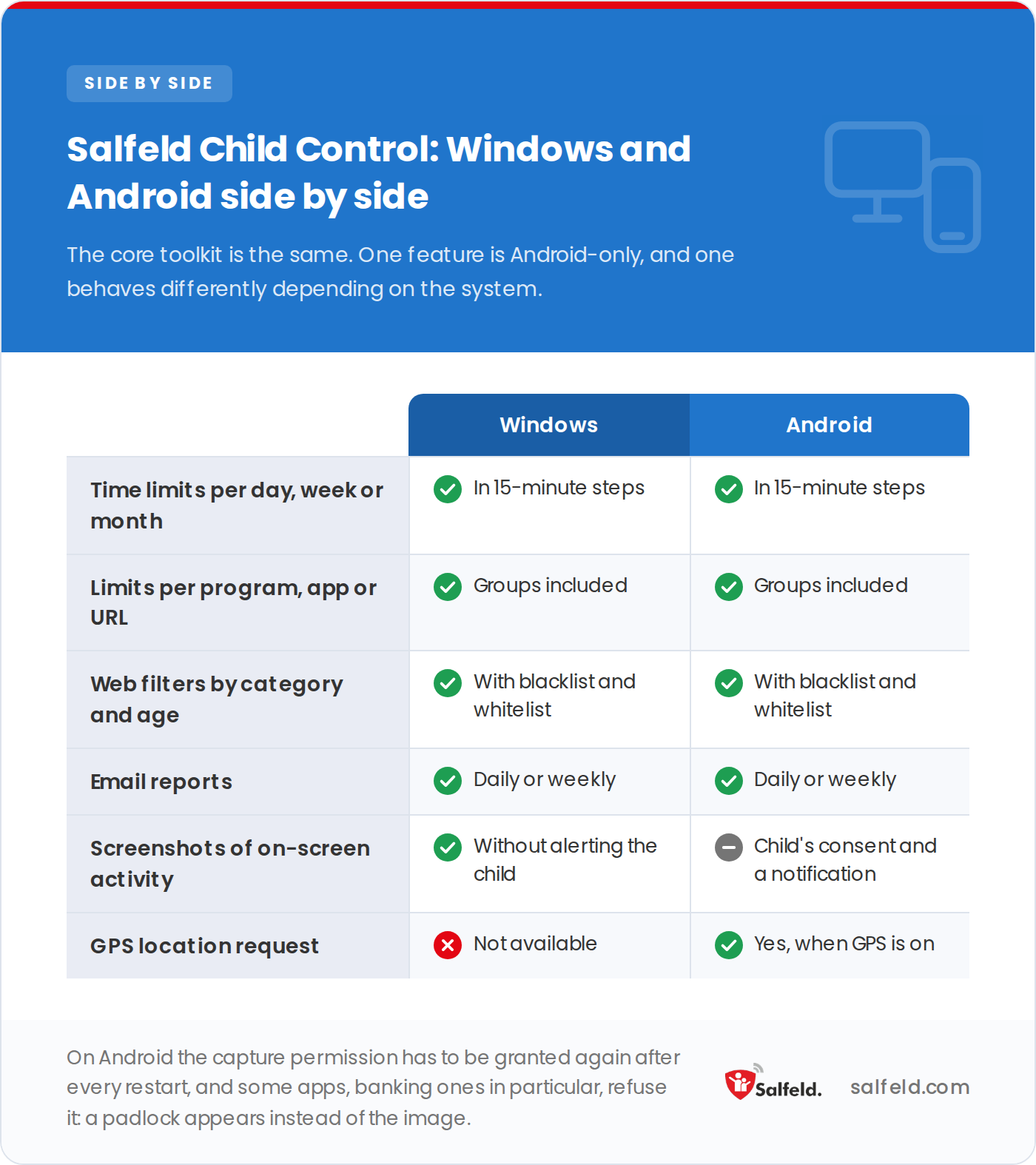
The table below adds five further capabilities, including time-limit extensions and the unlock request with notification.
| Capability | Windows (Salfeld Child Control) | Android (Salfeld Child Control) |
|---|---|---|
| Daily / weekly / monthly time limits | Yes | Yes |
| Blocked-time granularity | 15-minute intervals | 15-minute intervals |
| Per-item time limits | Individual programs and URLs, plus program groups | Individual apps and URLs, plus app groups |
| Time-limit extensions | Yes, for all limits | Yes, for every limit |
| Web filters (categories and ages) | Yes | Yes |
| Blacklist / whitelist | Yes | Yes |
| Unlock request with notification | Yes | Yes |
| Email reports (daily / weekly) | Yes | Yes |
| Screenshots | Yes | Yes, with the child’s consent and a visible notification |
| GPS location request | No | Yes, when GPS is enabled |
| Relationship to the OS | Third-party app; separate from Windows' built-in Microsoft Family Safety | Third-party app; separate from Google’s built-in Family Link |
The sections below describe how these features behave on each platform. Note that they come from Salfeld Child Control, an independent third-party app. It is not connected to Microsoft Family Safety on Windows or Google Family Link on Android, and on Android an active Family Link supervision can block its installation (Salfeld installation docs).
On Windows, Child Control sets limits for devices and browsers by daily, weekly, or monthly usage. Blocked times fall within 15-minute intervals. You can also set time limits for individual programs or URLs, as well as groups of programs, and an extension can be granted for any limit.
Additional Windows features include:
The Windows version also sends an email report every day or week and supports a release request. Its screenshot feature shows what has happened on screen, with no consent prompt and no notification to the child. This version runs on all current Windows editions.
On Android, Child Control sets limits for devices and browsers on a daily, weekly, or monthly basis, and blocks time in 15-minute intervals too. You get time limits for individual apps and URLs, as well as app groups, and an extension can be granted for every limit.
Additional Android features include:
Email reports go out daily or weekly, along with release requests. The Android version’s standout extra is a location request whenever GPS is enabled. This version runs on all Android releases currently in use.
So which one actually fits your household? The right choice usually follows the devices you already own. Because the feature sets overlap so heavily, the deciding factors tend to be your household’s operating system and the one or two extras unique to each platform.
Pick the Windows version if your family mostly uses PCs and Windows-compatible devices. Screenshots run silently there, which is the clearest difference: it gives you a direct view of on-screen activity that Android does not match.
Choose the Android version if your children’s phones and tablets run current Android releases. Its GPS location request is the standout draw, letting you check where a device is when location services are on. For a wider look at supervising specific apps, see our guides to Snapchat parental controls and keeping kids safe on Roblox.
Beyond time limits and filters, parents often want ways to reward good behavior and manage several devices at once. Salfeld’s parental control app covers those needs with the features below.
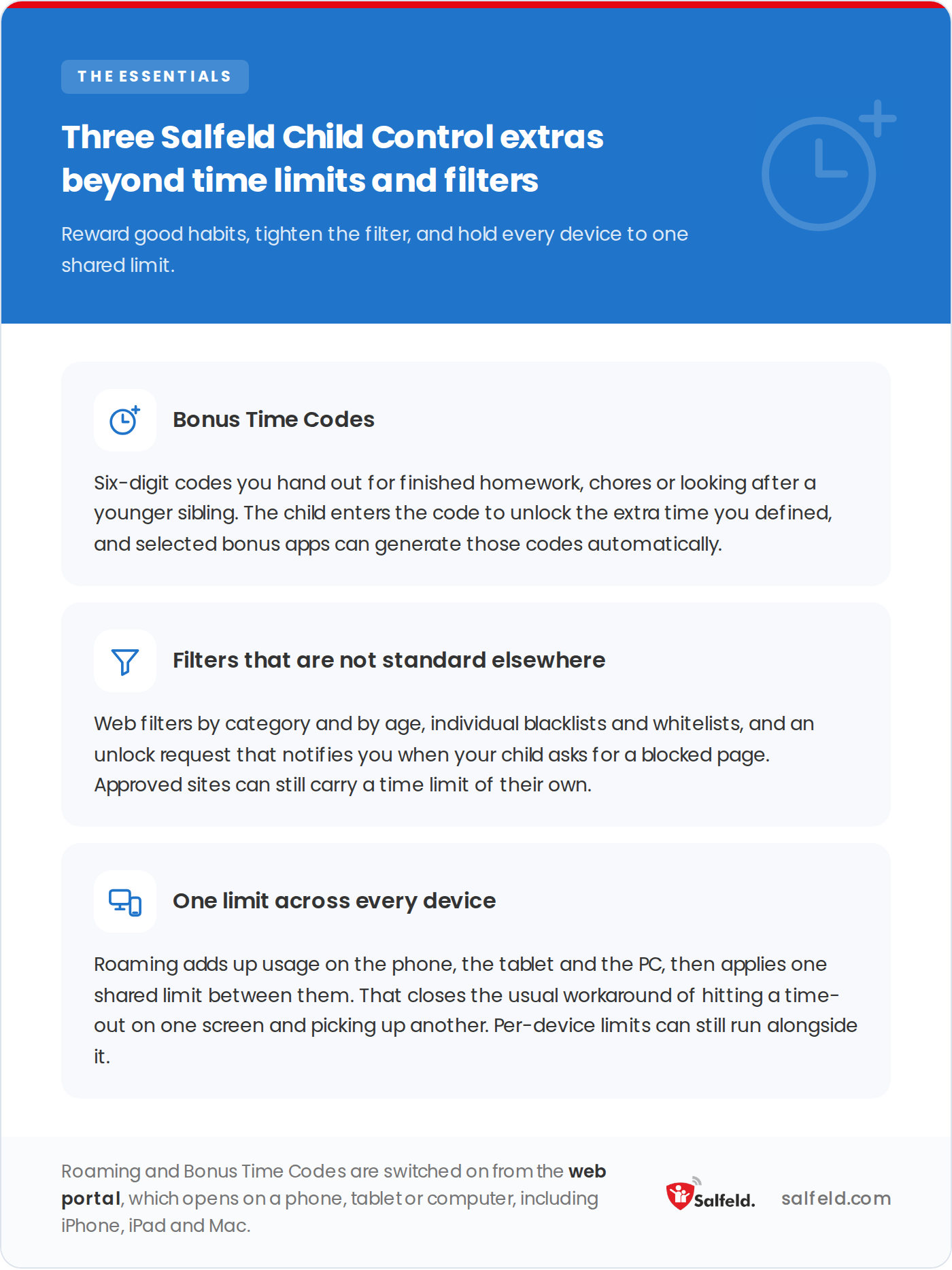
Roaming only applies once a parent switches it on from the web portal.
Parents can reward kids with Bonus Time Codes, 6-digit numbers given out for things like finishing homework, helping with chores, or looking after a younger sibling.
A child enters the code to activate the time extension a parent has predefined. Parents can also mark certain apps as bonus apps, which generate Bonus Time Codes automatically.
Some filters in Salfeld Child Control aren’t standard in comparable products from other brands: web filters by category and age, individual blacklists and whitelists, and a web filter unlock request with notification. Together they give parents finer control over which sites a child can reach.
Child Control lets you manage Windows and Android app times as one pool. Using the Roaming feature, a single limit can cover several devices at once, while parents can still set separate limits for each device when they’d rather.
The two versions give parents the same toolkit: time limits, web filters, email reports, and roaming across devices. The differences come down to two extras, the Windows screenshot feature and the Android GPS location request, plus which operating system your family already runs. Given that only 47% of parents currently use any smartphone parental control at all (FOSI/Ipsos, 2025), the bigger win is often just turning something on. Salfeld Child Control supports both platforms, so you can start on one and add the other later without switching products.
Weigh the two feature sets against your own household, then install the version that matches your devices. For managing game and app time specifically, our guide to Minecraft parental controls walks through a common example. And if you’re moving away from Google’s built-in Family Link because it feels too rigid, here’s how to stop Family Link supervision without losing your child’s account.
Almost. Both versions handle daily, weekly and monthly time limits in 15-minute intervals, plus web filters, blacklists and whitelists, and email reports. Screenshots work on both, but on Android the child has to consent and a notification appears. The GPS location request is Android-only. Everything else lines up between the two platforms.
Neither version is universally better; the choice usually comes down to which devices your family already owns. Windows edges ahead if you want screenshots taken without a prompt’s direct view of on-screen activity, while Android’s GPS location request is the deciding factor for families who want to check where a device is.
Yes. Salfeld Child Control’s Roaming feature calculates usage across every device where it’s installed and applies one shared limit, so a child can’t dodge a time-out on the phone by switching to the family PC. Per-device limits can still run alongside the shared one.
Fewer than half. A 2025 survey found only 47% of US parents use parental controls on their child’s smartphone, even though 86% report setting some kind of screen-time rule (FOSI/Ipsos; Pew Research Center, 2025). That gap between setting a rule and enforcing it is what tools like Salfeld Child Control are built to close.
One feature, plus one that behaves differently. The GPS location request is Android-only. Screenshots exist on both, but on Android the child has to consent, a notification appears, and the permission has to be granted again after every restart. Every other core feature, including time limits, web filters, blacklists and whitelists, unlock requests and email reports, works the same on both platforms.
We aim to publish guides that are genuinely useful, but the interfaces and settings described here change often. If a step no longer works, or if anything here is wrong, tell us and we will correct it.