


Find out what fits each age, what to say when your child pushes back, and how to set up parental controls in 10 minutes. Then sit down together and sign your family agreement.
Free PDF, 21 pages. No email, no sign-up. Written with the family coaches at Ditox.
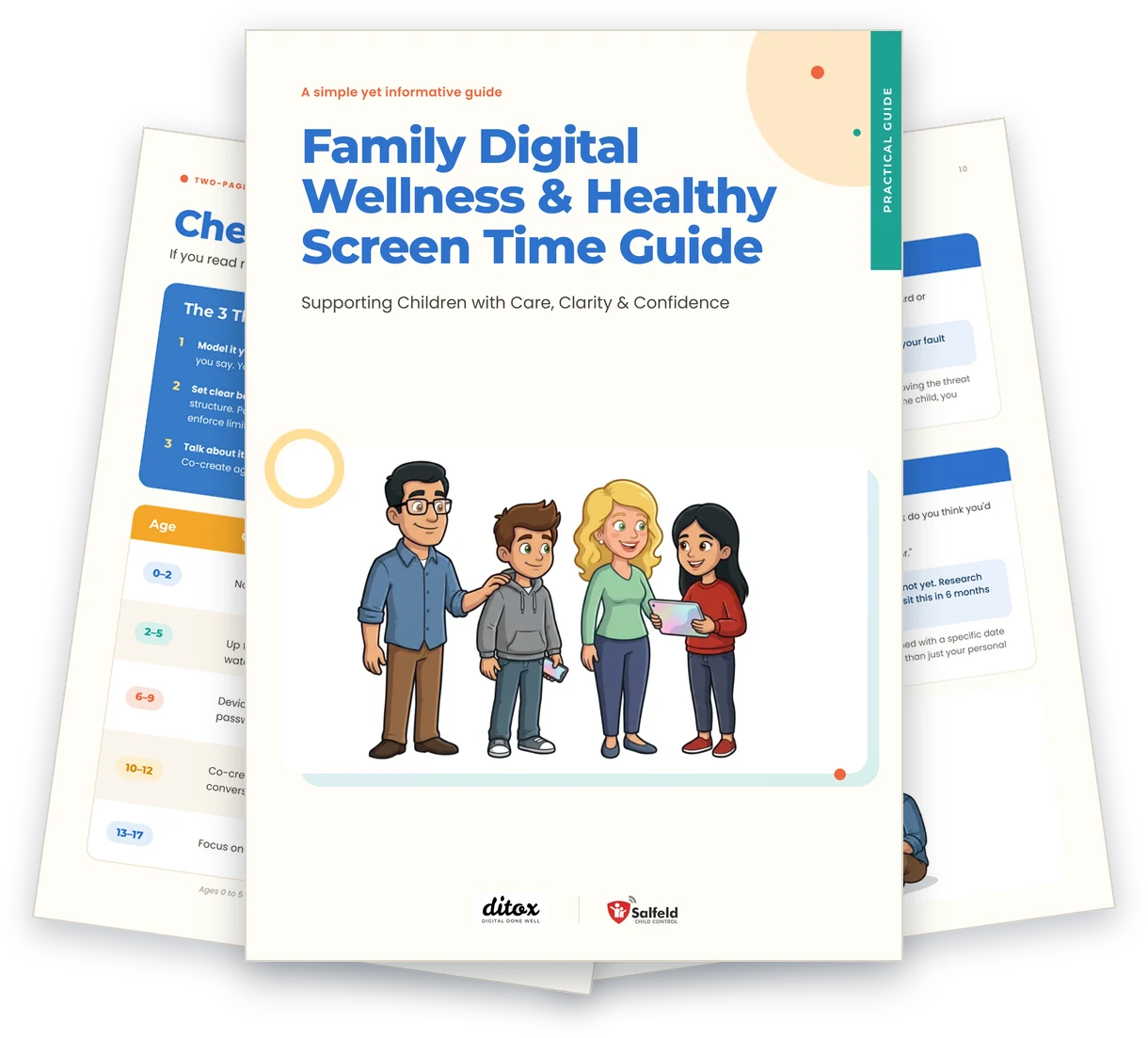
The 3 things that actually work, and a rule of thumb for every age from 0 to 17
Page 3How your own phone habits rub off on your kids, and the small changes they’ll notice
Page 5Five questions to ask yourself before your child gets a first phone
Page 8What to say when your child begs for “just 5 more minutes!”
Page 9What to say when something bad happens to your child online, so they keep coming to you
Page 12Why letting an app switch screens off at 8pm means you’re no longer the bad guy
Page 13Download the Free Guide
21 pages to print and share with everyone who looks after your children. No email, no sign-up.
Download PDFRead it onlineWhen it comes to kids and screens, parents can swing one of two ways: go into full lockdown, or just give up and hope for the best. Both reactions come from love, but neither actually works very well.
This guide is about another approach: high warmth combined with high structure. We’re skipping the guilt trips and the debates. Instead, you’ll find practical tools to build healthy habits together:
Technology isn’t the enemy. And you don’t need to be perfect. Being present and willing to figure this out alongside your kids is often enough. Let’s get started.
If you read nothing else, read this.
Kids copy what you do, not what you say. Your phone habits matter.
Developing brains need structure. Parental control & screen time tools help enforce limits consistently.
Rules without explanation backfire. Co-create agreements. Stay curious.
1.Pick one screen-free zone (dinner table? bedrooms?) and commit to it. You included.
2.Install a parental control app on your child’s device. Set one daily limit, just one. Start simple.
3.Ask your child: “What app makes you feel good? What one makes you feel worse?”
4.Schedule a 10-minute family check-in for Sunday evening.
Ages 0 to 5 follow World Health Organization guidance (2019): no screens before 2, except video calls with family, then up to one hour a day of high-quality content until 5.
For older children, the American Academy of Pediatrics (2026) looks at what they watch, not at hours.
More on the recommendations, and on how an agreed limit holds on an ordinary weekday: How much screen time for what age?
A 2024 study in Pediatric Research found that parents’ own screen habits (at mealtimes, in bedrooms, throughout the day) were significantly linked to their early teens’ screen time and problematic use patterns.
Children notice everything. If you ask them to put down their phone while scrolling through yours, they notice. If dinner is “screen-free for kids” but you’re checking emails, they notice.
This isn’t about being perfect. It’s about being honest.
Small, consistent choices, visible to your children, create ripple effects.

Despite what some parenting philosophies suggest, children need structure. In a US study of more than 10,000 children aged 12 and 13, parents who set limits on screens had children with less screen time and less problematic phone, gaming and social media use. Screens in the bedroom pointed the other way.
Developing brains need support. The prefrontal cortex (impulse control, planning, judgment) isn’t fully developed until the mid-20s. Children don’t yet have the neurological development for complete self-regulation.
Screens are engineered to be compelling. Variable rewards, infinite scroll, social validation: these features exploit vulnerabilities that even adults struggle with.
Parental control tools like Salfeld Child Control can support boundary-setting with screen time limits, content filtering and activity reports. But tools work best as scaffolding for family agreements, not as surveillance or a replacement for conversation.
Here’s where many parents struggle: they set rules without explanation, or set them once and never revisit them. Research shows this backfires, especially with teens.
Limits without communication can increase secrecy and risk-taking; kids who feel monitored but never talked to just get better at hiding. But when boundaries come with open dialogue, they work.
Four habits make the difference:
The goal isn’t permanent control. It’s teaching children to self-manage, so they’re ready when they’re fully independent.
There’s no single right age. Most experts suggest a staged path: a basic phone around 9 to 11, a managed smartphone from 11 to 14, then growing freedom. Readiness matters more than birthdays, so start with these questions:
Most experts recommend a gradual progression rather than jumping straight to a full smartphone.
Note: These are suggested age ranges, not strict rules. Every child is different.
Parents often tell us the hardest part isn’t knowing what to do: it’s knowing what to say in the moment. Here are scripts for real situations, tested by real families.

Ages 7–9: Setting First Boundaries
You say: “I know it’s hard to stop when you’re having fun. The timer went off, which means screen time is done for today.”
They say: “But I’m in the middle of something! Just 5 more minutes!”
Why: Young brains lack impulse control, so stopping is physically painful. Offering a choice (“A or B”) re-engages their thinking brain and gives them a sense of control, while “finish tomorrow” bridges the gap so it doesn’t feel like a permanent loss.
Ages 10–12: Pre-Teen Negotiations
You say: “You can always tell me if you see something that makes you feel weird or uncomfortable. You won’t be in trouble.”
Why: Fear of punishment is the #1 reason kids hide mistakes. By explicitly removing the threat (“you won’t be in trouble”) and blaming the content/internet instead of the child, you ensure they come to you next time.
Ages 10–12: Pre-Teen Negotiations
You say: “I know it feels like everyone is on TikTok. Let’s talk about it: what do you think you’d use it for?”
They say: “All my friends are on it! I’m the only one who isn’t. It’s so unfair.”
Why: A hard “No” feels arbitrary and creates rebellion. “Not yet” combined with a specific date feels like a plan. Citing “research” makes it objective facts rather than just your personal opinion.
Ages 13–17: Teen Autonomy
You say: “Phones away at dinner is our family agreement. It goes for all of us, including me.”
They say: “[Eye roll] This is so stupid. None of my friends have to do this.”
Why: Teens spot hypocrisy instantly. If you follow the rule, they have to. Acknowledging they can “get back to it” reduces their FOMO (Fear Of Missing Out) and lowers anxiety.
Ages 13–17: Teen Autonomy
You say: “I understand you’re frustrated with the time limits. They’re not punishment, they’re guardrails while your brain is still developing.”
They say: “You don’t trust me! You’re treating me like a baby!”
Why: This shifts the conflict from “Parent vs. Child” to “Family vs. Big Tech.” It validates their intelligence by treating them as partners against manipulative algorithms.
When You’re Worried: The Harder Conversations
You say: “I’ve noticed you’ve been on [app] a lot lately. How are you feeling about it?”
They say: “It’s fine. Why are you always on my case?”
Why: Lecturing shuts down listening. Asking how they feel triggers self-reflection. Most teens know when an app makes them feel bad; they just need help naming it without feeling judged.
When You’re Worried: The Harder Conversations
You say: “I’m glad you told me. This isn’t your fault and we’re going to figure it out together.”
They say: “Please don’t take my phone away. I didn’t do anything wrong.”
Why: The fear of losing their phone (their lifeline to friends) is why teens stay silent about cyberbullying. Removing that threat (“I’m not taking your phone”) is the best way to keep them talking to you.
You’ve set the boundaries and had the conversations. But in the heat of daily life, when you’re tired and they’re cranky, sticking to those boundaries is hard. This is where parental control tools come in.
Many parents feel guilty about using parental control software, thinking it means they don’t trust their child. Let’s reframe that. The best tools aren’t about spying or surveillance; they help families set consistent boundaries: managing screen time, filtering age-inappropriate content, and gradually giving children more autonomy as they grow.
Think of it less like a security camera, and more like training wheels.
They reduce conflict. When the app turns off the screen at 8pm, you aren’t the bad guy. The agreement is simply being enforced. It removes the daily negotiation.
They support willpower. Even adults struggle to stop scrolling. Expecting a child to out-willpower billion-dollar algorithms is unrealistic. The tool provides the “stop” signal their brain can’t generate yet.

Salfeld Child Control is designed to be that flexible support system: focusing on healthy time management rather than invasive monitoring. Setting it up takes about 10 minutes. Here’s how to get started with the basics. It runs on Windows PCs and Android devices; for iPhone and iPad, use Apple’s built-in Screen Time.
1.Install (5 minutes). Android: on your child’s device, download “Salfeld Child Control” from the Play Store, log in (or create an account), run onboarding and grant permissions, then manage all settings via the Salfeld Web Portal. Windows: download and open the software from the download page, log in (or create an account), choose which Windows users to monitor, hand the PC back to your child, then control all settings via the Salfeld Web Portal.
2.Set your first limit (3 minutes). Log into the Web Portal from any browser. Here’s what to set up first: Device Limit → Daily Limit, a total screen time for the day (e.g. 2 hours); Device Limit → Blocked Times, to block late night hours (e.g. 9pm to 7am); Web Filter, to choose a filter level (Blacklist recommended) and the web categories to block (e.g. adult content, social media, gambling).
3.Start simple. Don’t try to configure everything on day one. Set one daily limit and one blocked time. Add more rules gradually as you see what your family needs.
“But my kid will just crack it.” Most common workarounds (changing the system clock, uninstalling the app, hiding usage in pop-up windows, or switching devices) can be locked down in Salfeld’s Web Portal. No tool is 100% tamper-proof, but the everyday tricks are covered!
You have the technical “guardrails” set up with Salfeld Child Control (or another parental control tool). Now, you need the roadmap. The next step is to write it down.
Why write it down? Because verbal rules are easy to forget (and easy to argue about later). A written agreement moves the conversation from “Because I said so” to “Because this is what we agreed on.”
Don’t just hand it to them. This isn’t a parking ticket.
Do it over food. Pizza or dessert changes the vibe from “meeting” to “family time.”
Let them negotiate. If they help shape the rules, they’re far more likely to follow them.
Everyone signs. If phones are banned at dinner, that applies to parents too.

Sometimes screen challenges point to something deeper: severe anxiety, depression, social struggles, family stress. Most children navigate technology fine. But reach out for support if you notice the signs below. Seeking professional support is strength, not failure. You’d see a doctor for physical concerns; digital wellbeing deserves the same care.
If things ever feel serious, reach out; these lines are here for you, any time.
Digital wellbeing isn’t a one-time setup. It evolves as your kids grow. Brief, regular check-ins (nothing formal) keep communication open and let you adjust before small issues become big ones. Car rides, cooking, walks: any quiet moment works.
The goal is connection, not perfection.
1.What worked well this week?
2.What felt hard?
3.Did screens support or drain us?
4.Do our agreements need adjusting?
5.What’s one thing we’ll try next week?
If you aren’t in an extreme crisis but feel “stuck”, maybe the arguments are exhausting, or you need guidance to implement these changes, you don’t have to do it alone. Ditox specializes in helping families rebuild healthy digital habits through coaching and workshops.
It depends on age. The World Health Organization (2019) advises no screens before 2, except video calls with family, then up to one hour a day of high-quality, slow-paced content until 5, ideally watched together. For older children, the American Academy of Pediatrics (2026) looks at what they watch, not at hours: from 6 to 9, keep devices in shared spaces at consistent times; from 10 to 12, agree on the rules together and explain why; from 13 to 17, focus on balance and gradual autonomy.
Start with the three things that actually work: model the habits you want to see, set clear boundaries (for example one screen-free zone, like the dinner table or bedrooms, and one daily limit), and talk about the rules instead of just imposing them. Write them down together, apply them to parents too, and check in regularly to adjust them as your child grows.
There’s no single right age. Most experts suggest a staged path: a basic phone around 9 to 11, a managed smartphone from 11 to 14, then growing freedom. Readiness matters more than birthdays: does your child need a phone or just want one, can they follow household rules without constant reminders, how do they handle frustration, and do they come to you when something goes wrong?
On Android phones and Windows PCs, a parental control app such as Salfeld Child Control lets you set a daily limit, block late-night hours and filter websites. Setting it up takes about 10 minutes. On iPhone and iPad, use Apple’s built-in Screen Time. Start simple: one daily limit and one blocked time, then add rules gradually as you see what your family needs.
It doesn’t have to be. The best tools aren’t about spying or surveillance: they help families keep consistent boundaries, filter age-inappropriate content and give children more autonomy as they grow. Think of them less like a security camera and more like training wheels, and talk with your child about the rules they help enforce.
It’s a short set of rules your family writes down and signs together: screen-free zones and times, daily limits, which apps are allowed or “not yet”, what happens if a rule is broken, and when you’ll check in. Writing it down moves the conversation from “Because I said so” to “Because this is what we agreed on.” You can fill in and print the one on this page.
The same points as a family media agreement: screen-free zones such as the dinner table and bedrooms, the times devices go off, daily limits for school days and weekends, which apps are allowed and which are “not yet”, what happens if a rule is broken, and when you’ll check in. Do it over food, let your child negotiate, and have everyone sign, parents included.
Technology isn’t the enemy. The same phone that enables mindless scrolling can spark creativity, support learning, and connect your family across distances. The question was never whether kids should use technology. It’s how.
Healthy screen habits aren’t built overnight. They’re built through thousands of small moments of human connection: dinner table conversations, adjustments when something isn’t working, mistakes that become learning, and the steady presence of family members who care for each other.
Your children don’t need you to be perfect. They need you to be present, patient, and willing to figure this out alongside them.
Congratulations! Your family is progressing towards building the digital wellbeing life you all deserve.
Free PDF, 21 pages.

Last updated .

Ditox helps families and schools rebuild healthy digital habits, through coaching, workshops and guided programs.
ditox.co
Salfeld makes Child Control, screen time limits and parental control for Android and Windows. Parents set time limits, filter content and adjust the rules child by child.
salfeld.com