

Minecraft looks like the safe choice. With more than 300 million copies sold, a milestone Mojang Studios confirmed in 2023, it is one of the most-played games in the world, and for many families it is the first game they say yes to without much worry. But the real risks are not in the blocks. They are in the open chat on public servers, the strangers who send friend requests, the Minecoins charges that add up, and the custom worlds nobody has vetted.
What most parents miss is that the controls that shut all of this down are not inside the game. They live in your Microsoft account, and once you set them, Minecraft follows them everywhere your child signs in.
TL;DR
Minecraft’s parental controls live in your Microsoft account, not the game. Set them in three free layers: Microsoft Family Safety (screen time, purchases, which games open), Xbox privacy settings (chat, multiplayer, friends), and your device’s own controls. Together they take about fifteen minutes. For limits Microsoft cannot enforce beyond Minecraft, such as YouTube, Discord, and the browser, add a device-level control on Android and Windows.
Yes. Because a Minecraft account is a Microsoft account, the controls live in your Microsoft settings and work in three layers that fit together:
All three are free, and setting them up from scratch takes about fifteen minutes.
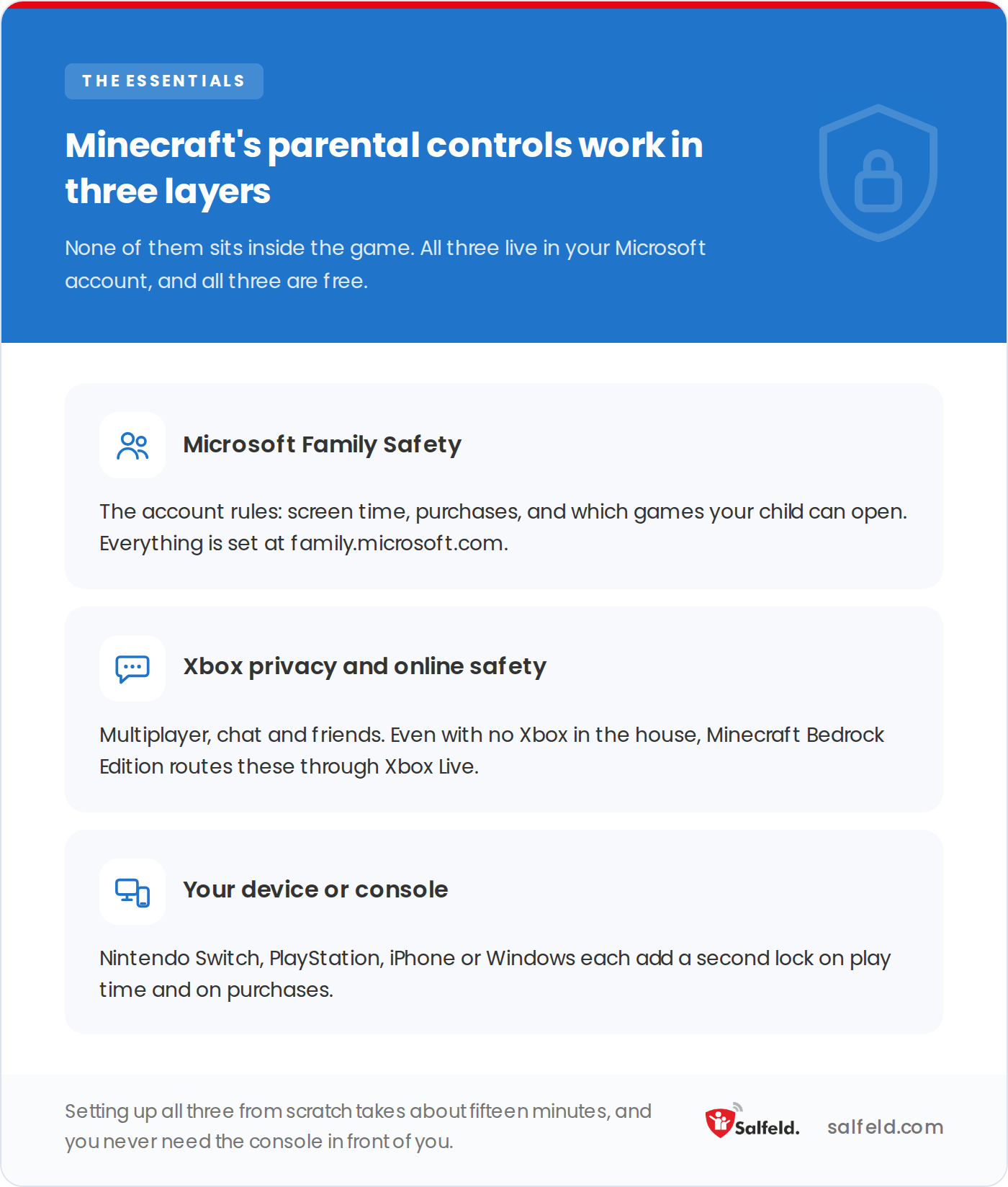
None of the three is set inside Minecraft itself, which is why most parents never find them.
Set up the layers in order, all from a web browser. You do not need the console in front of you.
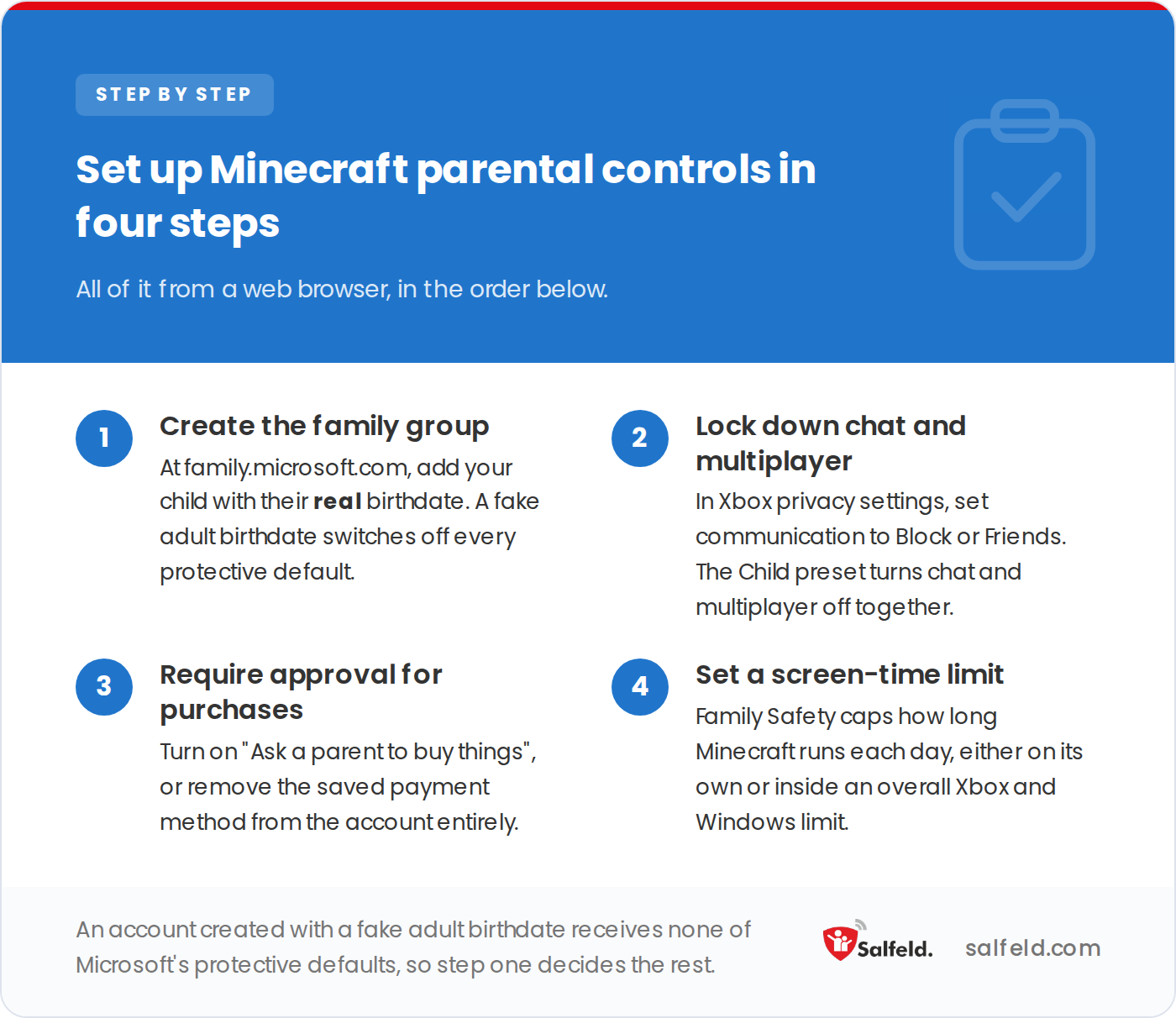
The order matters: a child account created with a fake birthdate leaves the next three steps with nothing to apply to.
Bedrock or Java? It changes what you can control
Most versions of Minecraft, including Nintendo Switch, Xbox, PlayStation, iPhone and iPad, Windows 10 and 11, and Android, run Bedrock Edition, and the three-layer system above applies to all of them. Java Edition, which runs only on PC, has fewer built-in controls, and the main safeguard is the server your child joins. You can hide chat in-game under Settings, then Multiplayer, then Chat, but the stronger protection is sticking to known, whitelisted servers or a private Realm rather than public ones.
| Bedrock Edition | Java Edition | |
|---|---|---|
| Runs on | Switch, Xbox, PlayStation, iOS, Windows 10/11, Android | PC only |
| Microsoft Family Safety and Xbox controls | Full: chat, multiplayer, purchases, screen time | Limited |
| Main safeguard | Account-level three-layer controls | The server your child joins |
| Chat control | Xbox privacy settings (Block / Friends / Child preset) | Hide chat in-game (Settings > Multiplayer > Chat) |
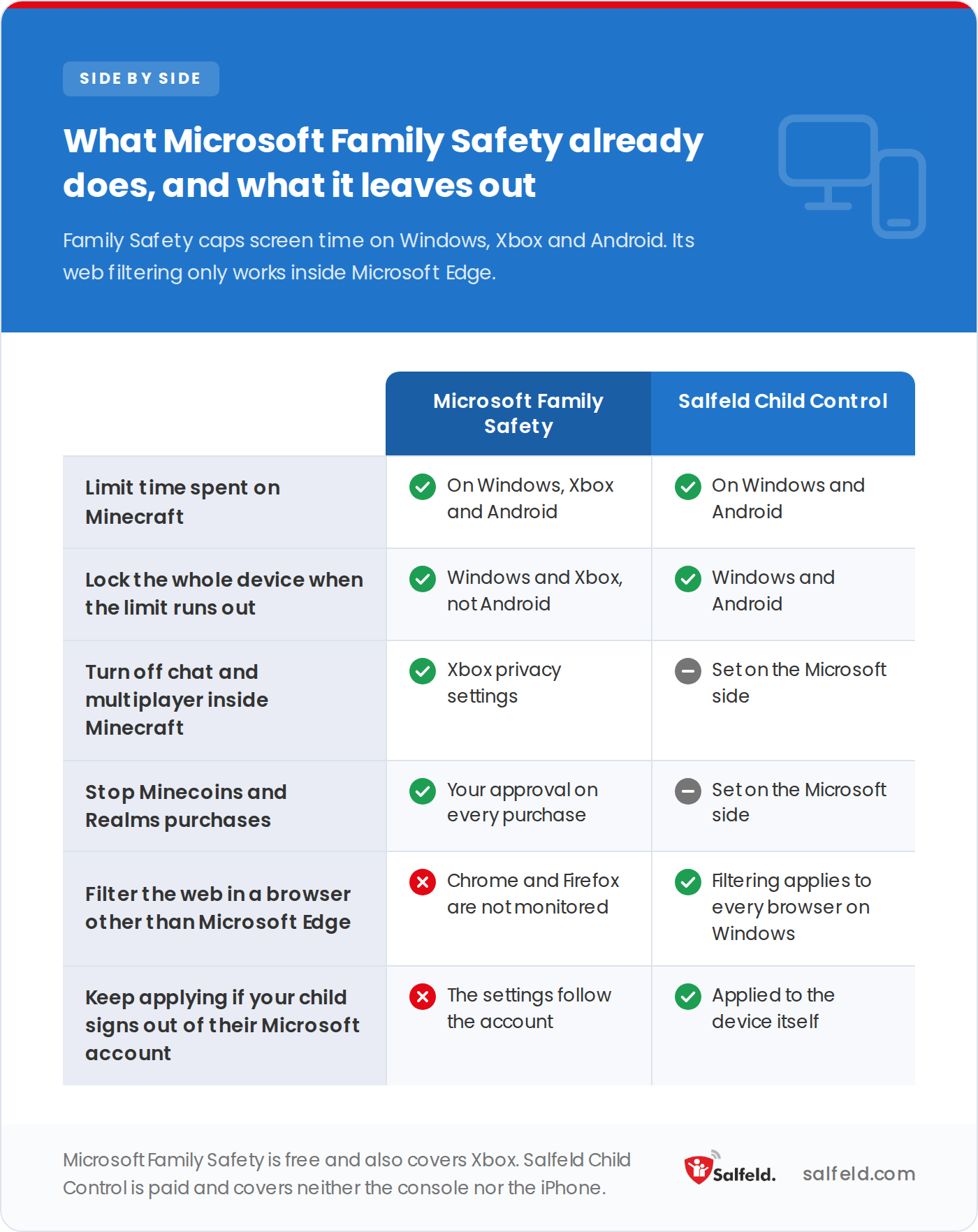
Microsoft’s controls are strong at the account and game level, but they stop at the edge of the Microsoft world. They do not reach:
Those gaps are where a device-level control earns its place. Microsoft’s settings manage Minecraft itself well, including screen time on Windows and Xbox, but they only work while your child stays signed in to the account you set up, and they do nothing beyond it.
On Android and Windows, Salfeld Child Control sets time limits that cover Minecraft, YouTube, Discord and the browser, app by app or in one shared limit. It blocks apps during homework and bedtime, and filters web content across every browser, whichever account your child is signed in to. Its roaming feature spreads a single daily screen time across the phone, tablet and computer instead of counting each device separately.
It is a one-time payment rather than a subscription, starting at $19.95 for one device for 12 months, with a 30-day free trial and a 30-day money-back guarantee.
One caveat: Salfeld Child Control runs on Android and Windows only. If your child plays Minecraft on a console, an iPhone, or an iPad, use the Microsoft and platform controls above, and add Salfeld Child Control on the Windows PCs and Android devices in your home.
Player-made worlds and mods sit outside both: no tool reviews them before your child walks in.
Try Salfeld Child Control free for 30 days
Microsoft manages Minecraft. Salfeld Child Control manages the rest: time limits on Minecraft, YouTube, Discord and the browser, each on its own or in one shared limit, with apps blocked during school and sleep. Start a free trial on Android and Windows, with a 30-day money-back guarantee.
By content, yes. The ESRB rates Minecraft Everyone 10+ for mild fantasy violence, PEGI rates it 7, and Common Sense Media broadly agrees. There is no drinking, drugs, or sexual content, and the fighting is bloodless. What sets Minecraft apart from a platform like Roblox, where every game is built by another user, is that the blocks themselves are safe.
The danger is not the game but who your child meets while playing it. That is why the setup above targets chat, contact and spending rather than the content. Once Minecraft is locked down, our guide to safe online games for kids is worth a read for judging the next game your child asks for.
Yes, but they are set through your Microsoft account rather than inside the game. Microsoft Family Safety controls screen time, purchases, and which games your child can open, and Xbox privacy settings control multiplayer, chat, and friends, because Minecraft Bedrock Edition runs these through Xbox Live.
For Bedrock Edition, open your child’s Xbox privacy settings and set “Others can communicate with voice, text, or invites” to Block, or set the profile preset to Child, which turns off chat and multiplayer together. For Java Edition, you can hide chat in-game under Settings, then Multiplayer, then Chat.
In your child’s Microsoft Family Safety spending settings, turn on “Ask a parent to buy things” so every Marketplace or Realms purchase needs your approval, or remove the saved payment method from the account entirely.
The ESRB rates Minecraft Everyone 10+ and PEGI rates it 7. The content is mild, so the deciding factor for most families is whether the child is ready for online multiplayer, which you can turn off for younger children.
Yes. Microsoft Family Safety can set a daily limit on Minecraft specifically, or on Xbox and Windows overall. For a single limit that also covers other apps and devices, a device-level tool such as Salfeld Child Control on Android and Windows spreads one shared screen time across them.
We aim to publish guides that are genuinely useful, but the interfaces and settings described here change often. If a step no longer works, or if anything here is wrong, tell us and we will correct it.