
Discover the ultimate guide for ensuring your child’s safety in online gaming. Learn about effective parental controls, establishing clear guidelines, and selecting appropriate games.
A must-read for every parent navigating the digital world with their children.
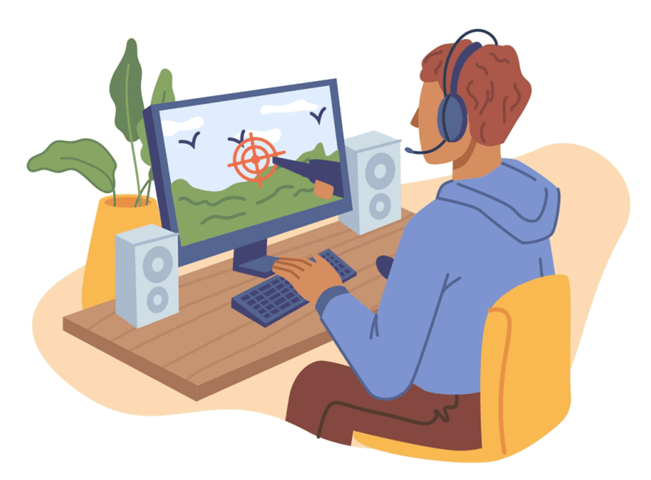
Online games have become more popular thanks to the growth and development of the internet. While they can help your child relax, keep their mind active, have fun, strengthen strategic and decision-making skills, and connect with others, they can also pose threats.
Some risks of online gaming include cyberbullying, addiction, inappropriate content and language, gambling, being unproductive, loss of personal data, and unwanted content from inappropriate people.
As a parent, then, it is essential to stay vigilant and ensure your child only plays safe online games.
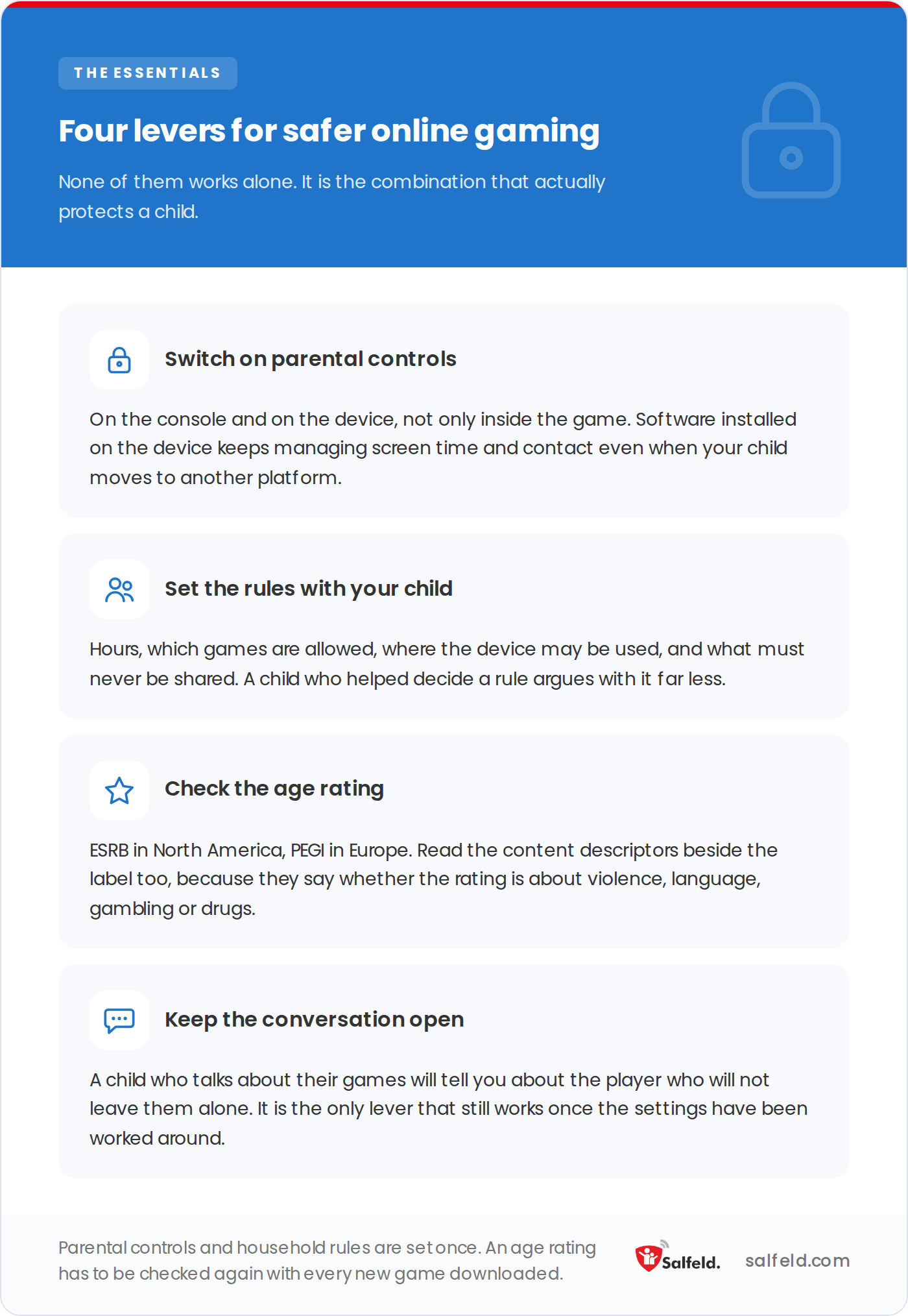
The first two have their own sections just below; age ratings are covered further down.
Parental control is one of the best ways to control what your child consumes. Gaming platforms and devices have parental controls you can customize. They help you restrict access to particular games, manage screen time, and control online interactions.
Before allowing your child to access any games, familiarize yourself with the controls and select the ones that match your child’s maturity and age.
Alternatively, you can install parental control software on your child’s devices. Salfeld Child Control runs on Windows and Android. You manage it from a browser, it applies one shared time limit across several devices, and it also lets you set separate time slots. Your child therefore cannot get around the rule by moving from the phone to the computer.
Set clear guidelines and rules and communicate them so your child understands them. They can cover which games are allowed, what must never be shared, screen time, who your child may talk to, or how many rounds a day.
Since children are more likely to follow the rules if they feel like they are part of the decision-making, try co-designing them. Explain each rule rather than imposing it: a child who understands the reason argues with it far less.
The point is not to cut off everything else, so agree how much screen time is allowed before or after a session. Set the place, too: a console in the living room rather than the bedroom changes a great deal.
Finally, decide in advance what happens when a rule is broken, and say so. A consequence agreed beforehand is accepted; one improvised afterwards is felt as a punishment.
Even after implementing all the practices to ensure child-safe gaming, the games you choose will determine how safe your child will be. Therefore, ensure you review and download the games together with your child.
Before downloading and setting up an online game, keep this checklist in mind:
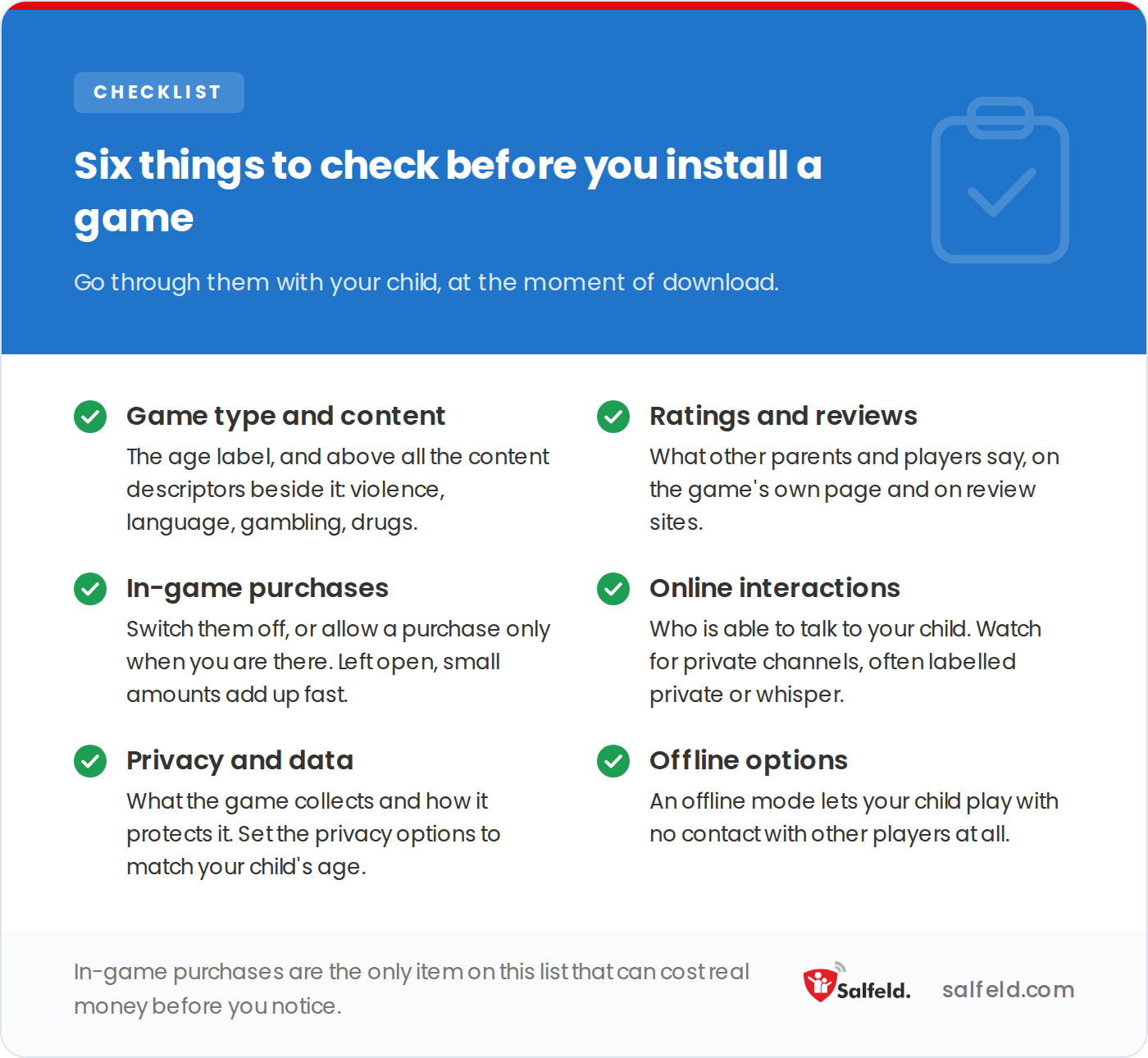
Each of the six has its own section in the rest of the article.
Different types of games have different content ratings based on age and maturity. Bodies such as the Entertainment Software Rating Board (ESRB) and PEGI offer age recommendations for various games.
The two systems cover different regions and line up only roughly, because ESRB has six categories where PEGI has five. Here is a side-by-side to help you read a box or a store page at a glance:
| Age suitability | ESRB (North America) | PEGI (Europe) |
|---|---|---|
| All ages | E (Everyone) | PEGI 3 |
| Older children | E10+ (Everyone 10 and over) | PEGI 7 |
| Early teens | T (Teen, 13 and over) | PEGI 12, sometimes PEGI 16 |
| Older teens | M (Mature, 17 and over) | PEGI 16 or PEGI 18 |
| Adults only | AO (Adults Only, 18 and over) | PEGI 18 |
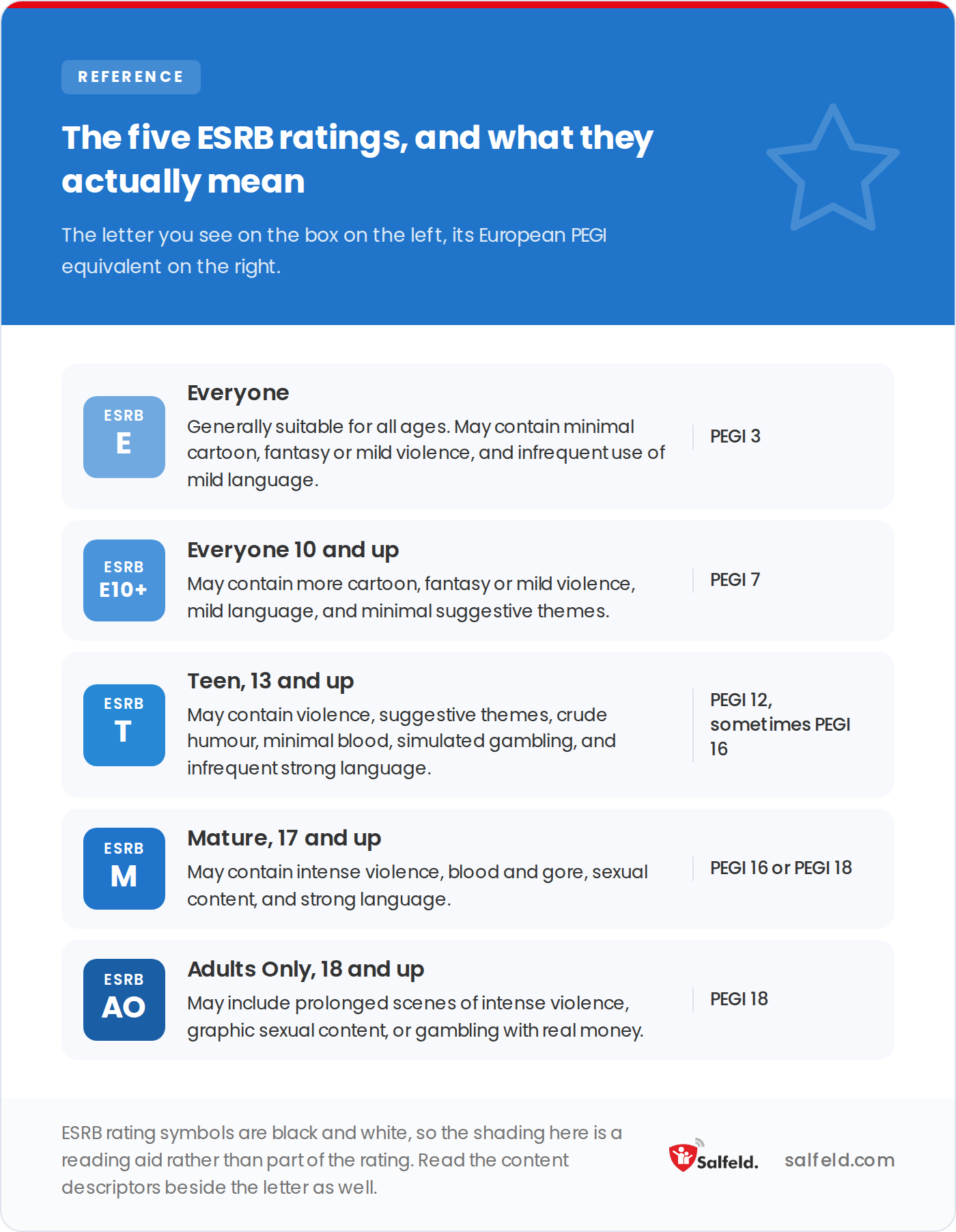
A letter is a starting point: the content descriptors printed beside it say what actually triggered the rating.
Beyond the age label, look at the content descriptors and check the game does not include elements like gambling, inappropriate language, sex, violence, or drugs. Weigh what the game gives back, too, and what skills it might build. Consider whether it is fun, educational, interactive, emotionally beneficial, or requires creativity.
Some platforms are worth a closer look on their own. If your child plays Roblox, our guide on whether Roblox is safe for kids breaks down the in-game risks and the exact settings to enable. If they play Minecraft, our Minecraft parental controls guide walks through the Microsoft settings that lock down chat, purchases, and screen time.
Visit the game’s website and online game rating websites to see what other players and parents have to say about it and its content. Australia’s eSafety Guide is another strong resource, with in-depth information about popular online games and how they work. The guide also lists age recommendations plus links to safety information.
Money and messaging are where safe online games most often go wrong. Unmanaged in-game purchases drain a card, while open chat channels expose kids to strangers. The settings and habits below keep both under your control.
In-game purchases unlock items or levels, which is exactly what makes them so effective on children. Left unmanaged, small amounts add up quickly. To stay in control, disable them or restrict them to only being purchased in your presence after a certain period, like a month.
Online exchanges matter as much as the ones in the playground. Know who your child talks to: that is what protects them from bullying and from adults with bad intentions.
Look for phrases like “private” or “whisper” in your child’s games because those could be private communication channels. Warn them, too, about taking their conversations to other platforms.
Read the game’s privacy policy and look at what it collects, how it stores it, and who it passes it to. A free game often earns its money from data.
Work through the game’s privacy settings, too, and make sure you set them to your child’s appropriate age. Finally, read relevant data protection regulations to ensure the game complies.
Many games offer an offline mode. It lets your child play with no contact at all with other players, which is often the simplest answer for younger children.
Match the rating to your child’s age using the label, not the theme. ESRB uses E, E10+, T, M and AO, while PEGI marks games 3, 7, 12, 16 or 18. A PEGI 12 or ESRB Teen title, for example, may include moderate violence that suits older children but not younger ones.
Most consoles, phones and PCs have built-in parental controls for screen time, purchases and chat. Turn these on first, then add dedicated software like Salfeld Child Control to enforce one shared time limit across every device so your child cannot simply switch screens.
In-game purchases are safe only when you manage them. Left open, they can lead to accidental or repeated overspending. Disable purchases outright, or require a password and your presence, so no charge goes through without your approval.
Ask before they play: which game, why, and who with. Review the chat and voice settings together, watch for private or whisper channels, and keep an open, judgment-free line so your child tells you when something feels wrong.
Age ratings and app store settings change from time to time. If one of them has moved, or if anything here is wrong, tell us and we will correct it.