
Snapchat has parental controls through a feature called Family Center. Once your teen accepts your invitation, you can see their friends list, who they have recently been chatting with, how much time they spend on the app each day, and the context behind new friends. You can restrict sensitive content, switch off the My AI chatbot and report accounts, but you cannot read messages, block the app or filter content in real time, and nothing works unless your teen opts in.
For limits that do not depend on your teen’s cooperation, you need device-level controls on top of Family Center: on Android and Windows, Salfeld Child Control enforces time limits and app blocking; on iPhone, Apple Screen Time sets app limits.

Snapchat is one of the apps teens ask for earliest, and one parents worry about most. Messages disappear by default, the camera opens first, and a lot of what happens stays out of view. Snapchat does have real parental tools, and it expanded them in January 2026, but they come with hard limits: they show you a lot and enforce almost nothing, and none of it works unless your teen agrees to it.
Yes. Snapchat’s parental controls live in a feature called Family Center, which Snap launched in 2022 and has expanded several times since. Family Center is a linked-account tool. You create your own Snapchat account, send a connection request to your teen’s account, and once they accept, you get a dashboard showing their recent activity.
The minimum age to use Snapchat is 13. Common Sense Media rates the app for 16 and up because of disappearing content and exposure to mature material, so the right age for your family is a conversation worth having before you set anything up.
Setup takes about ten minutes and has to be done with your teen present, because they need to accept the invitation from their own phone.
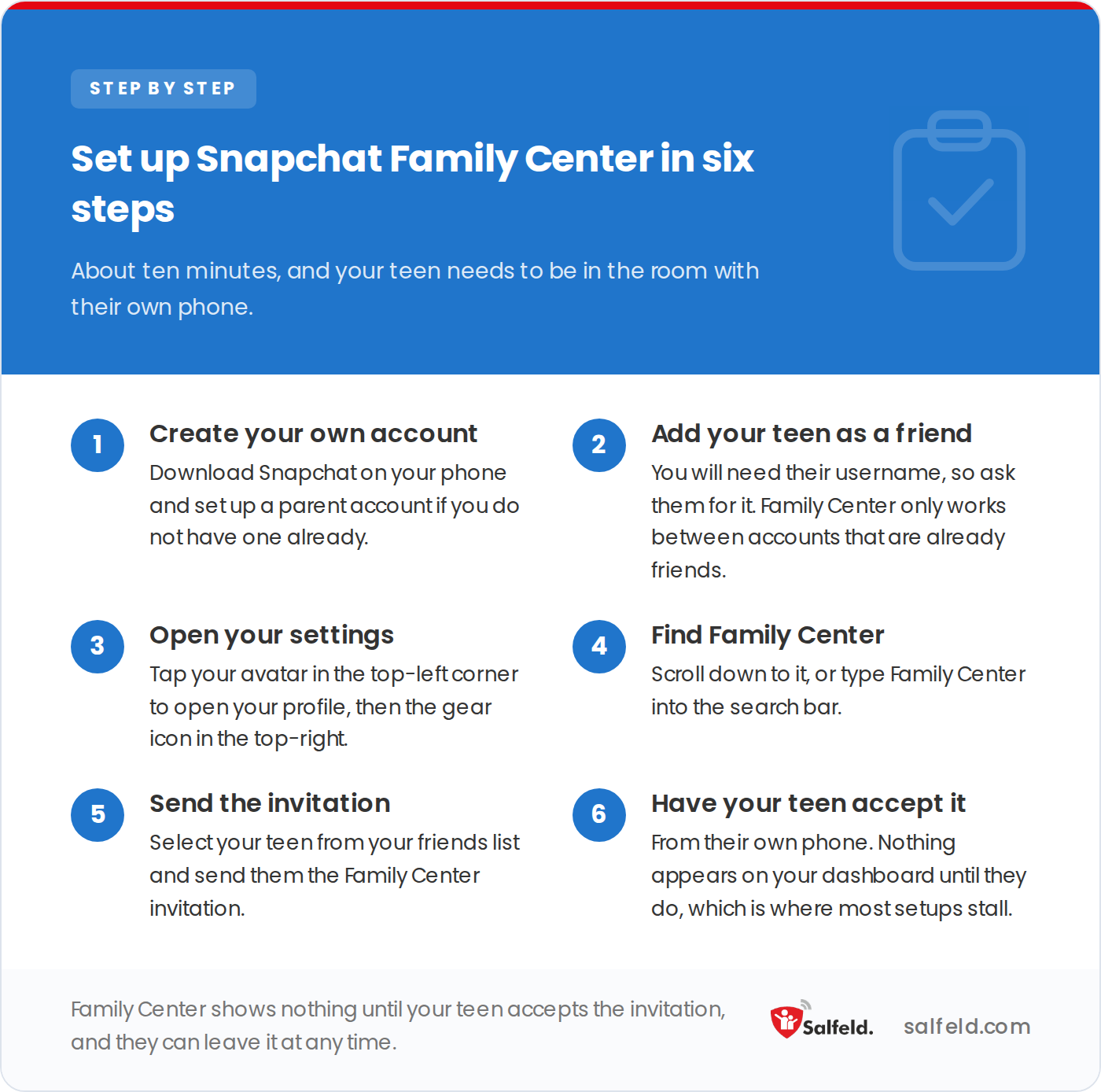
Step six is the one that stalls most setups, because it can only be done from your teen’s own phone.
Once connected, tap your teen’s profile inside Family Center any time to see their activity. Snapchat designed this as a starting point for conversation, not as full surveillance, which matches how it actually behaves. Snap publishes its own setup walkthrough at parents.snapchat.com.
The one step where setup stalls is the invitation. Nothing appears on your dashboard until your teen opens the request and accepts it from their own phone, so plan to do this together in one sitting.
After Snap’s January 2026 update, Family Center gives parents more than it used to. You can:
This is the part most guides skip, and it is the part that matters most for setting expectations.
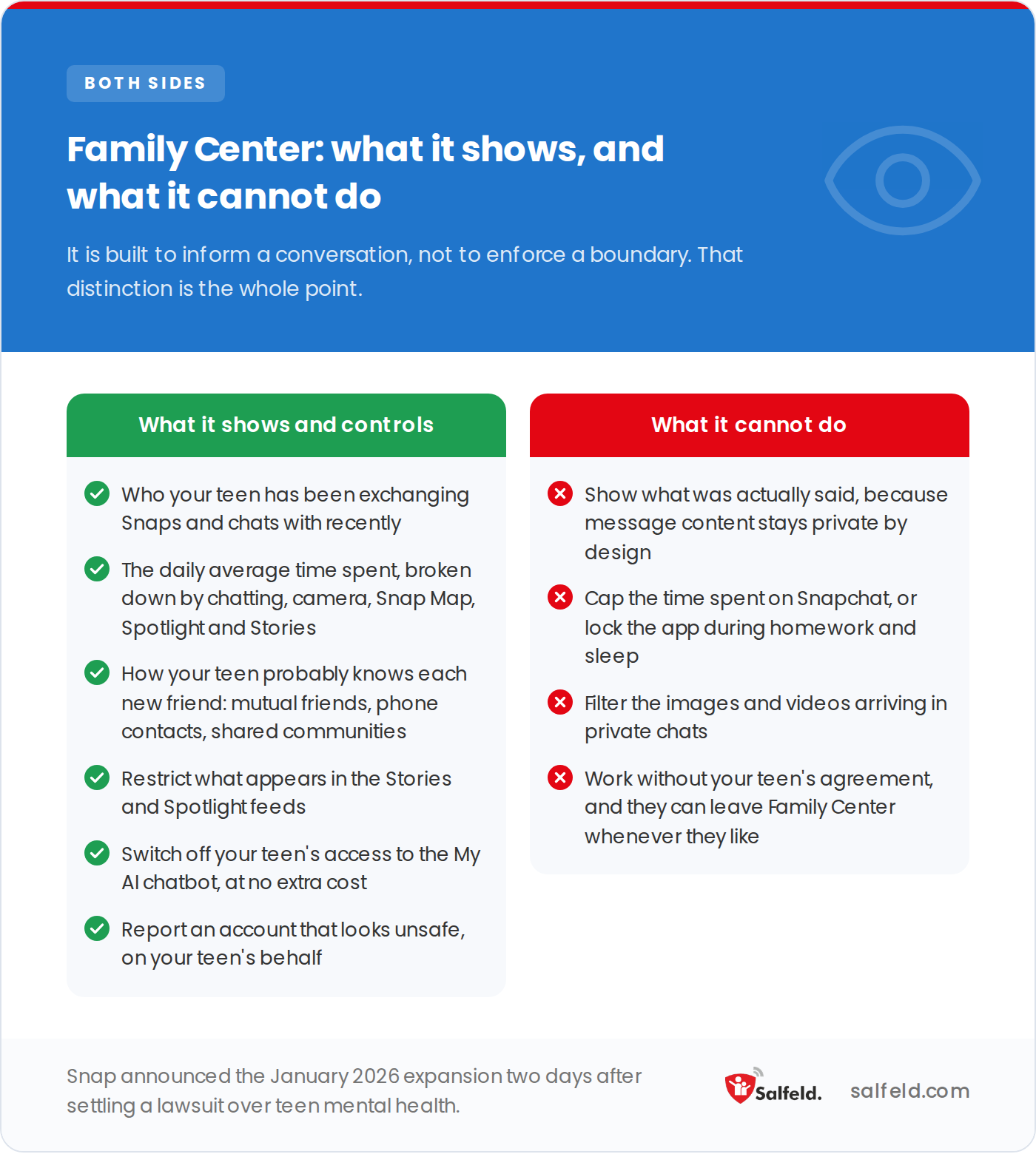
Snap announced the January 2026 expansion two days after settling a lawsuit over teen mental health.
The timing here is worth knowing. Snap announced the January 2026 expansion two days after settling a lawsuit that accused the platform of contributing to social media addiction and teen mental health harm. The new insights are real and useful, but they are insight tools, not enforcement tools.
Three Snapchat settings to change in the next five minutes
If you only have a few minutes, these are the highest-impact changes. First, on your teen’s phone set Snap Map to Ghost Mode to hide their live location from everyone. Second, under Settings then Privacy Controls, set “Contact Me” and “See My Story” to My Friends so strangers cannot message your teen or view their Stories. Third, in Family Center switch off your teen’s access to My AI, then talk about why the chatbot exists and why its advice is not always reliable.
Four risks come up most often, and each has a setting or a conversation that reduces it:
Family Center is genuinely useful for visibility, but it cannot enforce time limits, block the app, or work without your teen’s cooperation. If you want guardrails that do not depend on your teen opting in, you need a control that sits on the device itself rather than inside Snapchat.
| What you need | Snapchat Family Center | Salfeld Child Control |
|---|---|---|
| See who your teen talks to | Yes, friends list and recent contacts | Family Center’s job, not this one |
| See how long they spend on Snapchat | Yes, daily average by area | Yes, time counted on the app |
| Cap the time spent on Snapchat | No, it shows the time but cannot limit it | Yes, daily, weekly or monthly limit |
| Block the app during school and sleep | No time-of-day setting | Yes, at the hours you set |
| Work without your teen opting in | No, it stops if they leave Family Center | Yes, enforced on the device |
| Share one screen time across phone, tablet and PC | No, Snapchat only | Yes, one shared screen time |
| Read the content of messages | No, private by design | No, this is not what it does |
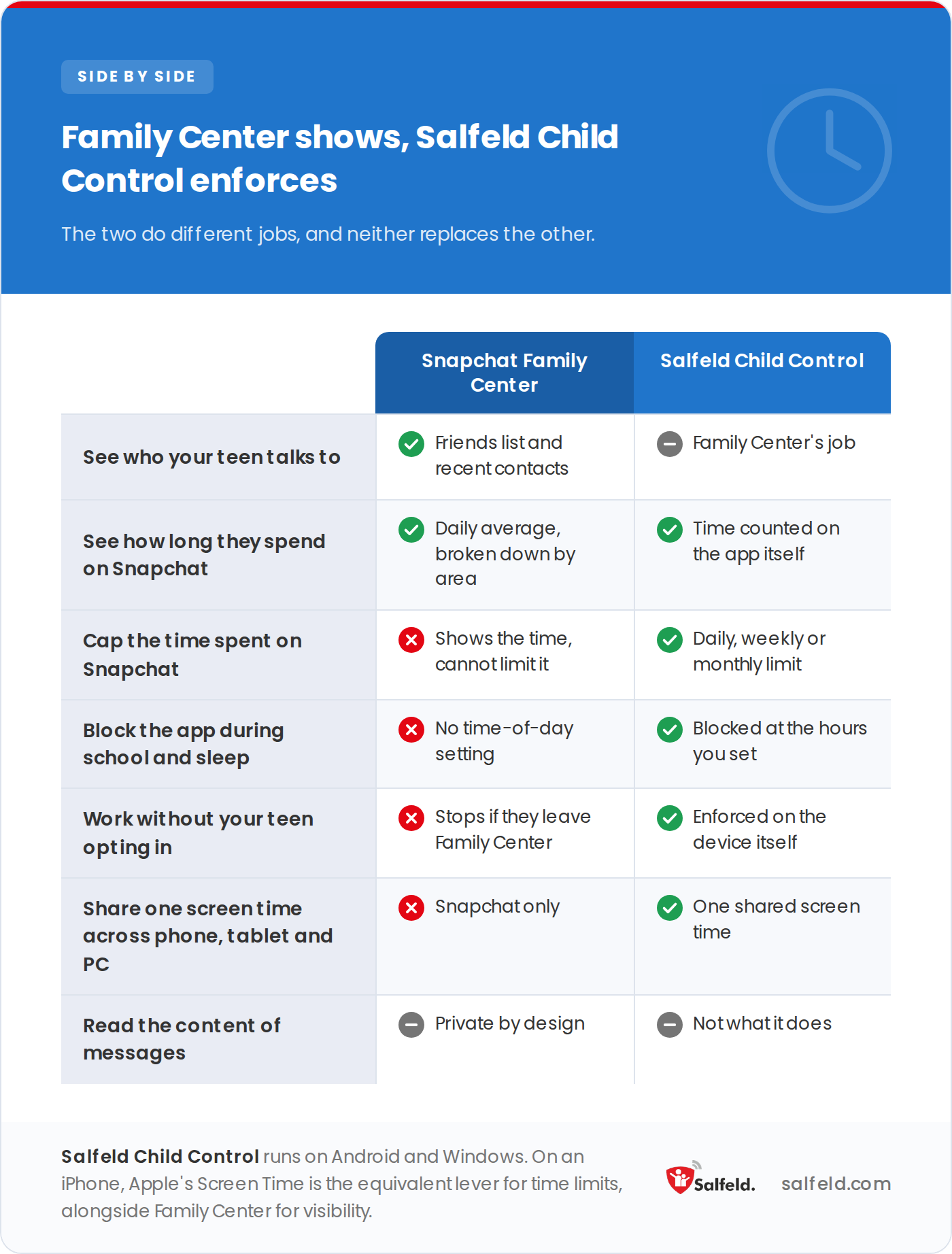
The table above carries the same rows in text, which is the version screen readers and search engines can read.
On an Android phone or a Windows PC, Salfeld Child Control handles exactly what Family Center cannot. You can set a daily, weekly or monthly limit on Snapchat itself, block the app during school and bedtime, and group all the social apps under one shared limit. Its roaming feature spreads a single daily screen time across your teen’s phone, tablet and computer instead of counting each device separately. None of this requires your teen to accept an invitation, because it is enforced at the device level.
It is a one-time payment rather than a subscription, starting at $19.95 for one device for 12 months, with a 30-day free trial and a 30-day money-back guarantee.
One honest caveat: Salfeld Child Control runs on Android and Windows, not on iOS. If your teen uses Snapchat on an iPhone, your device-level options are Apple’s built-in Screen Time for time limits, combined with Snapchat’s Family Center for visibility. The strongest setup in every case is layered: Family Center for insight into who your teen talks to, device-level limits for the boundaries Snapchat cannot enforce, and an open conversation that does the work no software can.
Some monitoring apps do surface Snapchat content, almost always on Android. They work around Snapchat rather than through it: scanning the text of notifications for keywords, or capturing the screen at intervals so a Snap is recorded before it disappears. A few require the phone to be rooted. Apple’s restrictions make most of this impossible on an iPhone.
None of them reads Snapchat’s own data. The messages are not exposed to other apps and are deleted by default, which is why even the most capable tools capture fragments rather than whole conversations.
That is a different decision, not a stronger version of the same one. It means reading a teenager’s private correspondence, sometimes without them knowing, and it spends the trust that makes a teenager come to you when something goes wrong. Salfeld Child Control does not do this. It limits, blocks and reports on time and on sites; it does not read messages.
No. Snapchat’s Family Center lets you see who your teen has recently been chatting with, but it never shows the content of those messages. Message content stays private by design. If you need oversight beyond contact patterns, you have to combine Family Center with device-level controls and direct conversation.
No. Your teen has to accept your Family Center invitation from their own phone, and they can choose to leave it later. Controls that do not depend on consent have to be set at the device level, for example through Salfeld Child Control on Android and Windows or Apple Screen Time on iPhone.
Family Center shows you how long your teen spends on Snapchat but cannot cap it. To enforce a limit, use a device-level tool. On Android and Windows, Salfeld Child Control can set a daily, weekly or monthly limit and block the app during set hours. On iPhone, Apple Screen Time can set an app limit.
Snapchat requires users to be at least 13. Common Sense Media recommends 16 and up because of disappearing content and exposure to mature material. The right age depends on your family, but knowing both numbers helps you decide.
Through Family Center, parents can switch off their teen’s access to My AI at no extra cost. If instead you want to remove My AI from your own personal account’s chat feed, the permanent option is a Snapchat+ feature at $3.99 per month; free users can unpin or clear it, but it can reappear after app updates.
Try Salfeld Child Control for Free
Want guardrails Snapchat’s own controls cannot give you? Try Salfeld Child Control free for 30 days on Android and Windows. Set real time limits, block or cap Snapchat, and share one screen time across devices, with a 30-day money-back guarantee so you can test it without pressure.
We aim to publish guides that are genuinely useful, but the interfaces and settings described here change often. If a step no longer works, or if anything here is wrong, tell us and we will correct it.