
Most guides explain where to click to create a supervised YouTube account. This one explains what each level actually lets through, taken from Google’s published content policies: what Explore allows from age 9, what Explore more adds from 13, and where Most of YouTube stops.
It also covers the six settings on a supervised account, including the daily Shorts feed limit, which can be set to zero since March 2026. And it names the decisive limitation: YouTube’s time tools are reminders a teenager can dismiss, and the timer resets when they switch device.

Creating a supervised YouTube account takes five minutes. Choosing the right content level requires knowing what each one allows, and that is the part almost no guide covers.
Google does publish its rules. They are detailed, and in places surprising.
The short version
Three levels on a supervised account, plus the separate YouTube Kids app. Explore aligns with ratings for viewers 9 and over, Explore more with 13 and over, Most of YouTube opens almost the whole catalogue.
The highest-value setting is not the content level. It is turning autoplay off, which your child cannot switch back on.
The limitation worth knowing: YouTube’s time tools are reminders a teenager can dismiss, and the timer resets if they switch device.
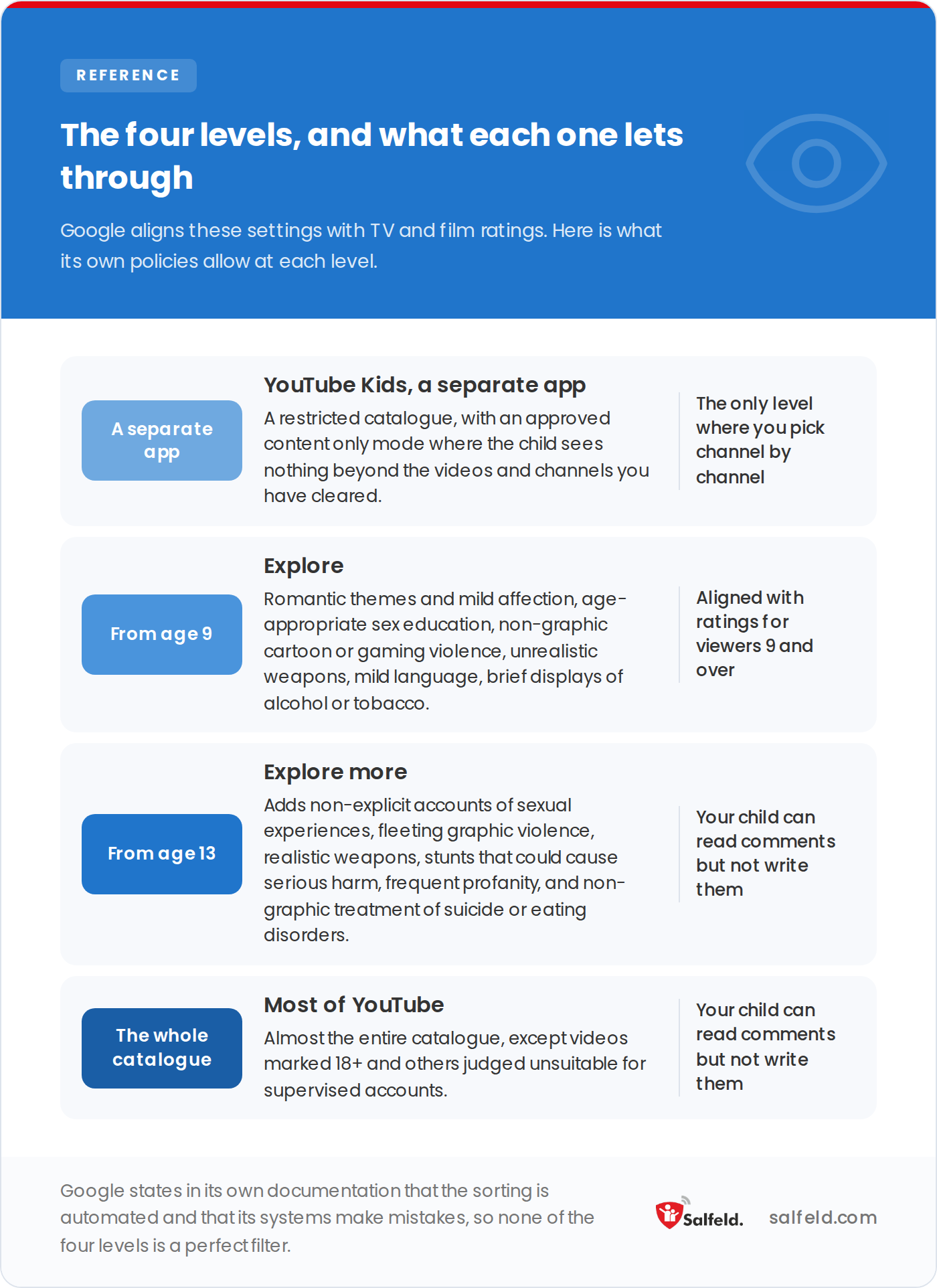
The content described here comes from Google’s published content policies, not from an estimate.
A restricted catalogue in its own app. Its approved content only mode is the one place in the whole range where you clear channels one by one, and your child sees nothing else.
It is also the most demanding to maintain, since every new channel has to be added by hand.
This is the strictest level on a supervised account, and it is broader than the name suggests. According to Google’s policies, it allows:
This level contains everything in Explore, plus a noticeably higher step:
That last point deserves a deliberate decision. If your child is going through a difficult period, it is a serious argument for staying on Explore. In the UK, Childline is free and confidential on 0800 1111; in the US, the 988 Suicide and Crisis Lifeline is available at any hour.
Almost the entire catalogue, except videos marked 18+ and others judged unsuitable for supervised accounts.
From Explore more upwards, your child can read comments but not write them.
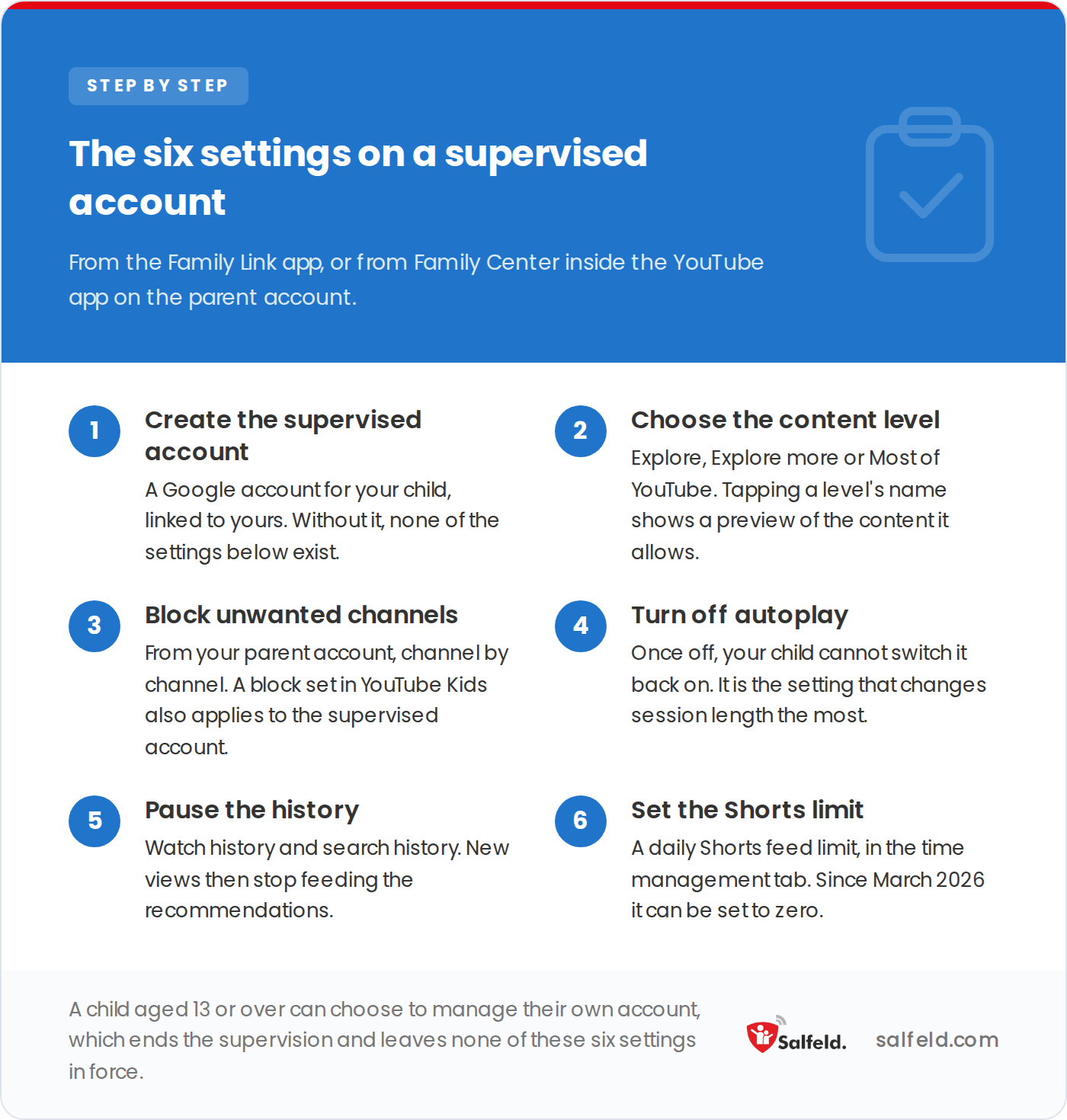
Everything is set from Family Link, or from Family Center inside the YouTube app on the parent account.
Create the supervised account. A Google account for your child, linked to yours. Without it, none of the settings below exist.
Choose the content level. Tapping a level’s name shows a preview of the content it allows. You can change it at any time.
Block unwanted channels. From your parent account, channel by channel. A block set in YouTube Kids also applies to the supervised account, and the other way round.
Turn autoplay off. This is the highest-value setting on the list and the least used. Once off, your child cannot switch it back on, and a session stops chaining itself.
Pause the history. Watch and search. New views then stop feeding the recommendations, which breaks the content spirals.
Set the Shorts limit. A daily Shorts feed limit, in the time management tab of Family Center. When it is reached, a message appears and scrolling stops for the day. Since March 2026 that limit can be set to zero, which removes the Shorts feed altogether.
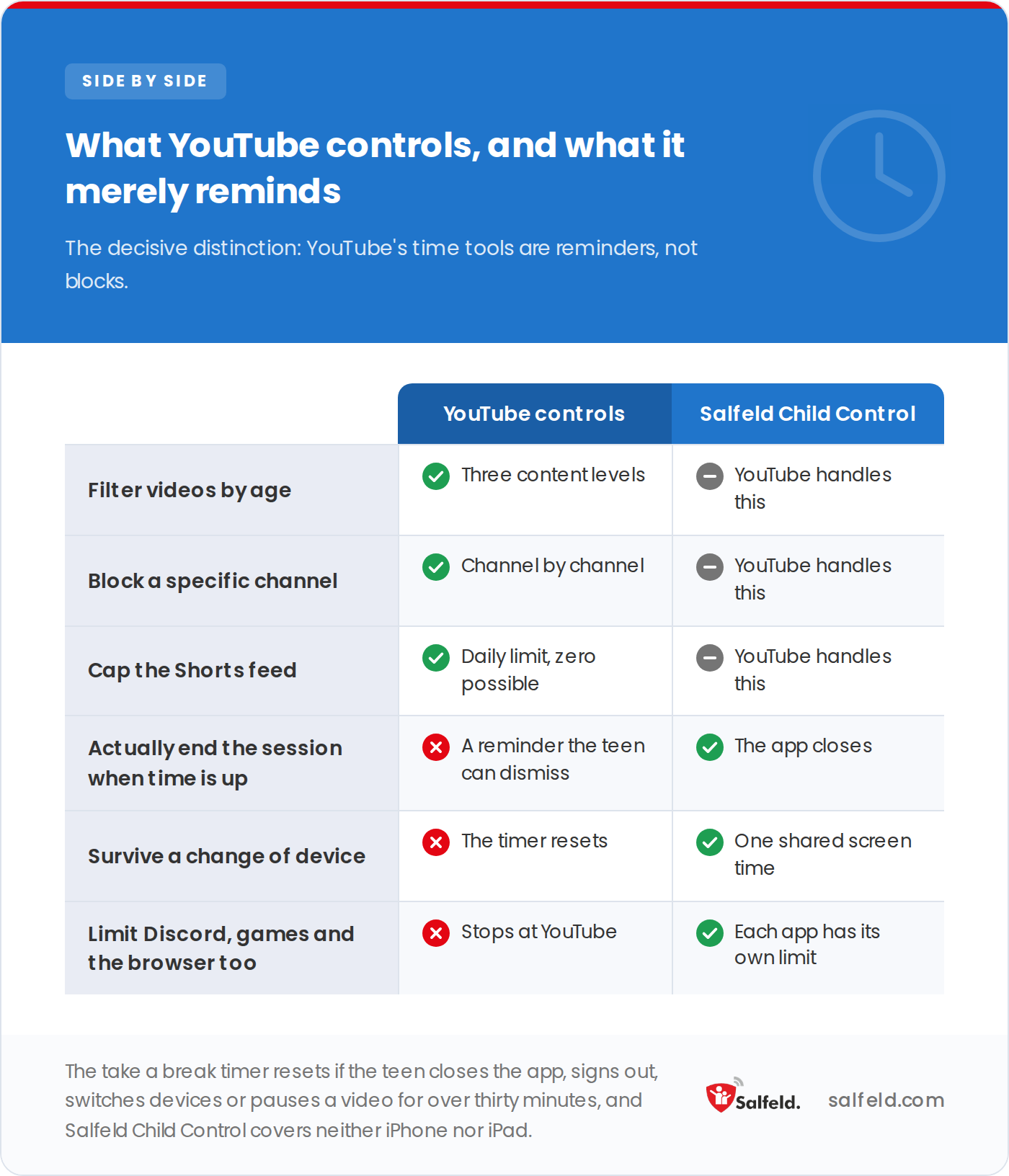
The table below carries the same rows in text, which is the version screen readers and search engines can read.
YouTube offers two time tools for supervised teen accounts: a take a break reminder and a bedtime reminder.
They are reminders, not blocks. Your teenager can dismiss them, or ask to be reminded again in fifteen minutes. And the timer resets if they close the app, sign out, switch device, or pause a video for more than thirty minutes. It does not run during offline playback or when casting to a television either.
In other words, these tools inform. They do not enforce.
| What you need | YouTube controls | Salfeld Child Control |
|---|---|---|
| Filter videos by age | Yes, three content levels | Filters sites, not individual videos |
| Block a specific channel | Yes, channel by channel | Yes, by URL, in the browser |
| Cap the Shorts feed | Yes, daily limit, zero possible | YouTube handles this |
| Actually end the session when time is up | No, a reminder the teen can dismiss | Yes, the app closes |
| Survive a change of device | No, the timer resets | Yes, one shared screen time |
| Limit Discord, games and the browser too | No, stops at YouTube | Yes, each app has its own limit |
One last point of timing: at 13, your child can choose to manage their own account, which ends the supervision and all six settings with it.
Disclosure: Salfeld makes Salfeld Child Control, a parental control app, and publishes this blog.
On Android and Windows, Salfeld Child Control sets a time limit on the YouTube app itself, blocks it during homework and bedtime, and can block or time-limit a specific address, including a channel’s. Because it acts on the device, the limit holds even if your child switches account or device.
One useful caveat: that address filter works in browsers, and on Android only in Chrome. It does not apply inside the YouTube app, where only the time limit takes effect.
One honest caveat: it runs on neither iPhone nor iPad. On those, Apple’s Screen Time is the equivalent lever, alongside YouTube’s own settings.
Try Salfeld Child Control free for 30 days
YouTube filters the videos. Salfeld Child Control enforces the time: a limit on the app, blocking during school and sleep, website filtering. Start a free trial on Android and Windows.
YouTube Kids is a separate app with a restricted catalogue and a mode where you clear channels one by one. A supervised account gives access to the ordinary YouTube app with filtering by content level. The first suits younger children, the second the transition into YouTube itself.
According to Google’s published policies, Explore aligns with ratings for viewers 9 and over. It allows romantic themes, age-appropriate sex education, non-graphic cartoon or gaming violence, unrealistic weapons, brief displays of alcohol or tobacco, and infrequent mildly offensive language.
Yes, since March 2026. The daily Shorts feed limit is set in the time management tab of Family Center and can be set to zero. When the limit is reached, a message appears and scrolling stops until the next morning.
No. The take a break and bedtime reminders are notifications your teenager can dismiss or postpone by fifteen minutes. The timer resets if they close the app, sign out, switch device, or pause a video for more than thirty minutes. For an actual stop, you need a control installed on the device.
From 13, or the applicable age in your country, they can choose to manage their own account, which ends the supervision and every setting attached to it. Below that age, the settings can only be changed from the parent account.
This article describes settings that change over time. It is not medical or legal advice.
We aim to publish guides that are genuinely useful, but the interfaces and settings described here change often. If a step no longer works, or if anything here is wrong, tell us and we will correct it.